FB120 carries the orange half-circle in the project tree and the block you have open is the one you wrote on Tuesday. On an S7-1500 that symbol is the result of a checksum comparison, not a time stamp comparison, and the manual lists more than a dozen separate checksums behind it. Three of them have anything to do with the code.
The comparison you want is right-click the device, Compare, Offline/online. The compare editor opens beside the project tree, every object that exists on both sides is listed with a status symbol, and the Start detailed comparison button opens the two versions of a block side by side with the differences coloured in. What you do next depends on which checksum moved, and that is the part nobody explains.
The facts below come from the STEP 7 system manual, the same text the information system prints. Where a sentence describes what I get on V17 rather than what the manual states, it says so.
Checksums, not time stamps
A simple offline/online comparison runs by itself the moment you go online, and it is what puts the symbols on the project tree. The compare editor runs a fuller one. For the S7-1200 and S7-1500 families that comparison is built on checksums generated over specific data of each object, and two objects count as the same only when their checksums match; for S7-300 and S7-400 the time stamp is still what gets evaluated. The manual splits the data into source data, meaning everything you can edit directly such as the object name, the source code, the comments and the programming language, and target data, meaning everything the compiler and the runtime produce from it. Inside source data the categories are separate: the interface without comments, the textual block interface for SCL blocks, the code without comments, the multi-language comments, the language configuration, the event data of an OB, the configurable properties, the alarm and supervision configuration, the text lists, and the tags and constants of a PLC tag table without their comments. Target data holds the compilation and runtime data, plus a time stamp category that is only populated for the older families.
Eighteen rows in the manual’s table, and a single symbol on top of them. The symbol never says what changed.
Compile before you compare, every time, and compile again after any edit you make during a comparison. The manual is blunt about a case that catches people monitoring a block: recompiling a block with a code change moves the time stamp while leaving the checksum alone, and in that state the right move is to download the block and restart the monitoring rather than chase the difference.
Compile first. Half the differences people bring me were never differences at all.
There are also three situations where the time stamp is used as a criterion whatever the CPU family, and all three produce different checksums on objects that really are identical: an export and re-import through the Openness interface, block calls, and access to the global data of a data block. Two more worth knowing: know-how protected blocks created in an older version do not show the code and comment checksums under source data at all, and the value settings of technology objects are folded into the block interface checksum.
That last one surprises people who touched an axis and expected the interface to sit still.
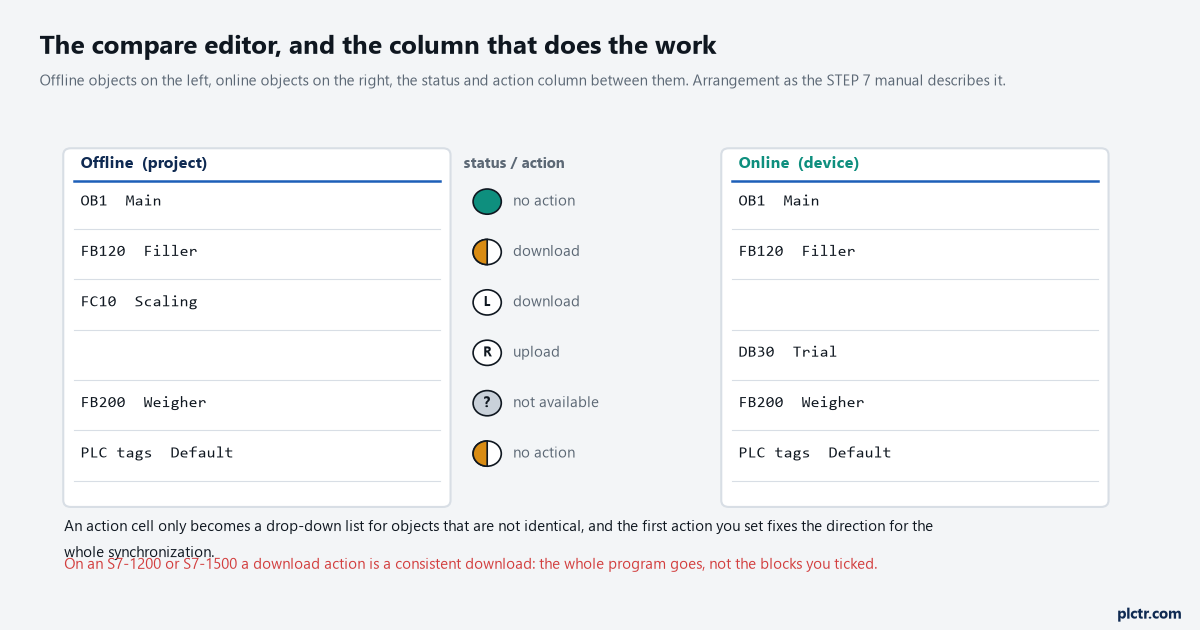
The editor as it is arranged, with the status and action column in the middle. The action cell only becomes a drop-down list for objects that are not identical.
What each symbol is telling you
Six results exist for an offline/online comparison and they are not all about difference. A folder mark says the folder contains objects whose online and offline versions differ. Identical and different are the two you expect. Two more say the object exists on one side only, offline or online, which is how you find the block somebody downloaded from a laptop and never put in the project. The sixth is the one worth reading carefully: a result that is not known or cannot be displayed, which the manual gives exactly two reasons for, no rights to access a protected CPU, or a download that was performed with a TIA Portal version older than V14. A filter icon on a criterion means that criterion is switched off and its checksum is not counted in the result at all.
An unknown result is not a difference. It is a comparison that never ran.
Comparison criteria are set from the toolbar, and switching one off does something you need to remember: the manual notes that criteria have no influence on the result shown in the project tree, so the editor and the tree can legitimately disagree. If a criterion does not exist for an object, code without comments on a data block being the example the manual gives, that checksum is treated as matching.
A criterion you switched off last month is still off today, and the filter icon is small.
Detailed comparison, and the four things it will not do
Selecting a block and clicking Start detailed comparison opens one instance of the program editor per version, side by side. In an offline/online comparison the reference block on the left is the offline version and the compared block on the right is the online one. The colouring is worth learning because it is not what most people assume: lines holding a difference are shaded grey, and the differing operands and instructions inside them are picked out in green. Where the two blocks have different network counts, pseudo-networks are inserted so the matching networks stay level with each other, marked with the text about no corresponding network found, and they cannot be edited. Then comes the rule that changes how you read the result: if two networks differ by more than fifty percent they are treated as not belonging together and no comparison is made between them, and pseudo-networks are inserted until a suitable network turns up. Inside a network, only the first difference of an operation is highlighted, so an instruction with four differing inputs shows one; resolve it, update the comparison, and the next one appears.
The four refusals are short and they all bite at the worst moment. A know-how protected block cannot be compared in detail at all. Types and master copies from libraries cannot either. Two SCL blocks only compare if both interfaces are in the same form, both in table form or both in text form. PLC tags compare offline against online only on an S7-1500 from firmware V2.5 upwards, and below that you get the overall status of the whole tag table and nothing finer.
Check the firmware version before you blame the editor for the coarse answer.
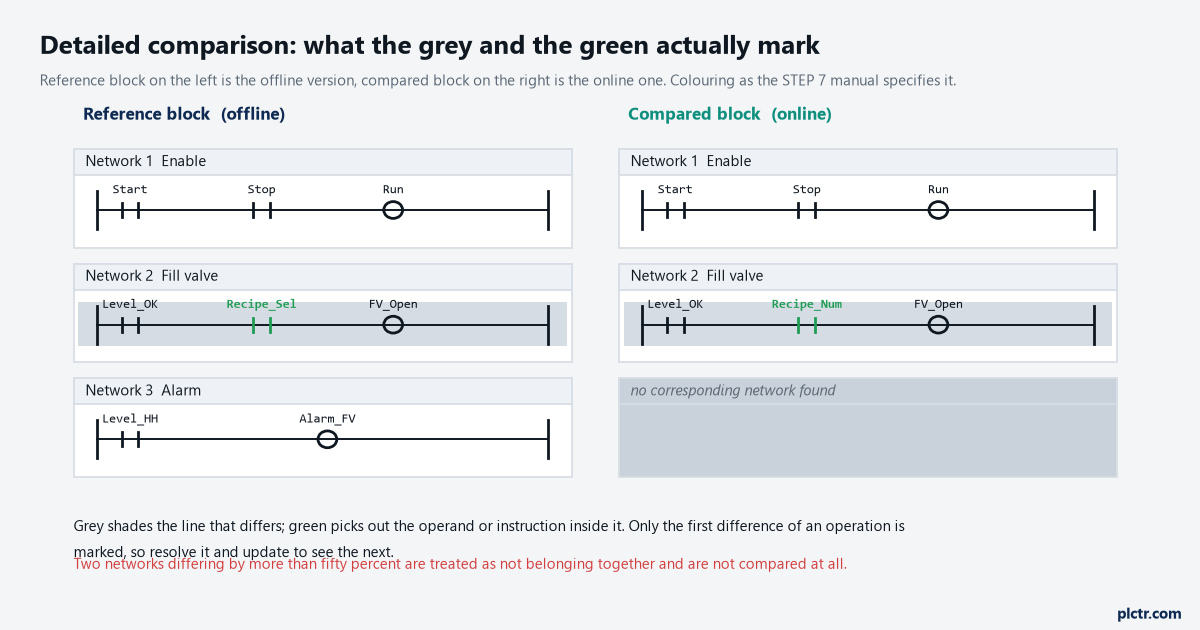
Drawn from the manual’s colouring rules. The pseudo-network on the right is what appears when the network counts do not match, and it cannot be edited.
The dead end: editing the block in front of you
This is where an hour goes. During a detailed comparison you can change the offline block and only the offline block, and in an offline/offline comparison only the one in the left-hand pane. The online block is read-only and stays read-only, which surprises people who have just spotted the thing that is wrong and want to fix it where they are looking at it. SCL is stricter again: the manual says you cannot edit SCL blocks manually during a detailed comparison at all, and the only way to move a change is the arrow in the sidebar of the line, which inserts that line into the other block. The arrow colours carry the whole rule. Grey means the change cannot be applied because the other side is online or write-protected, blue means an offline block is handing the change to the other one, orange means an online block is handing the change across, which is possible when the two blocks come from different CPUs and neither is write-protected.
Change the offline block, update the comparison, then synchronize. That order, every time.
One more detail from the same section, and it is the one that makes joint work on a live CPU exciting: on an S7-1500 another user can download while your detailed comparison is open, and if the block you are comparing is changed or deleted by that download the comparison is terminated with a message and has to be restarted.
Synchronizing, and why it only goes one way
Actions are set per object in the compare editor and only on objects that are not identical. For an offline/online comparison the manual allows synchronization in one direction only, so the first action you set fixes the direction for the whole synchronization: set one block to download and the rest can only download, and getting back to uploading means setting that first object to No action and starting again, or running a fresh comparison. The family matters for what happens next. On an S7-1200 or S7-1500, choosing download to the device gives you a consistent download, which means the whole program goes rather than the blocks you ticked; uploading the other way does let you take individual blocks. Actions can be set on the Program blocks folder, on folders you created yourself, or on single blocks.
Consistent download is the safe behaviour and it is also the surprising one, so expect the whole program to go.
Changing something while the editor is open invalidates the result, and for an offline/online comparison the manual warns that a change on the device can trigger an automatic update that quietly voids the actions you had already set. Those objects are highlighted so you can set them again. The Refresh view button is unavailable while the editor is loading or synchronizing.
Set the actions last, immediately before you synchronize, and they will still be valid.
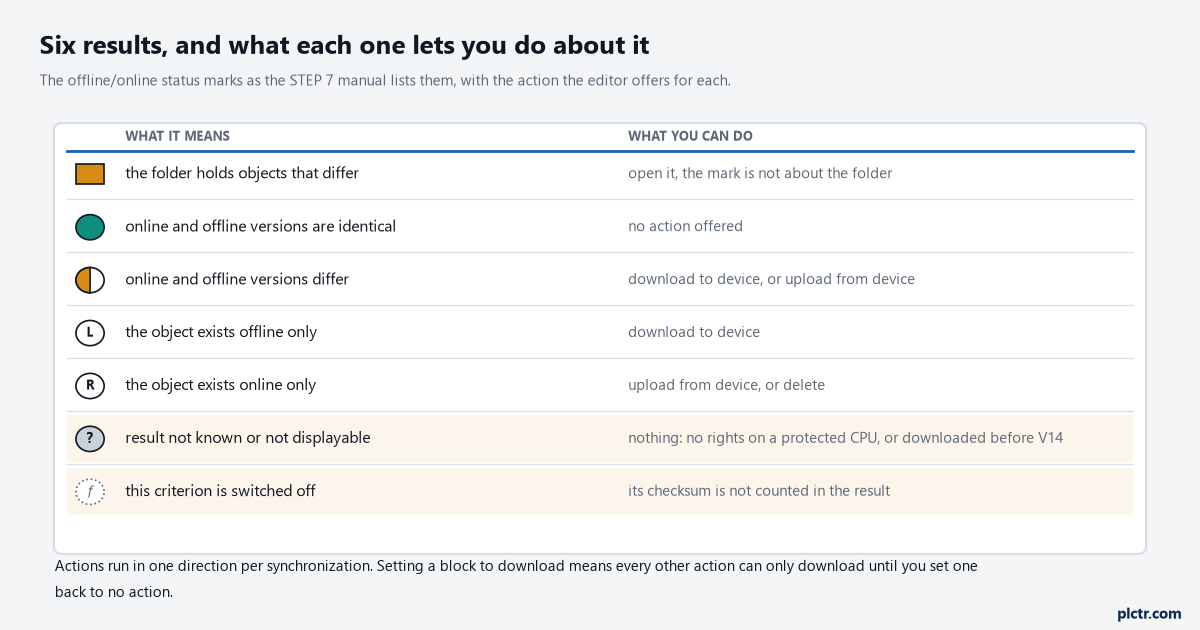
The symbol on the left, the reading in the middle, the action it allows on the right. The unknown result is the row that sends people looking for a difference that does not exist.
The checksum that fits on a sheet of paper
There is a simpler comparison underneath all of this and it is the one worth writing into the commissioning file. Every compilation gives the PLC program a checksum, a new one when the program changed and the same one when it did not, including the case where you make a change and undo it. Two are generated: one across every block in the block folder, counting blocks that exist but are never called, and one across the project’s text lists. Safety blocks and safety PLC data types are left out. Changes to watch tables and force tables do not move it. Data blocks created or modified at runtime by WRIT_DBL, CREAT_DB or DELETE_DB do not influence it either. The checksum travels down with the program, so it is readable from the running CPU under Properties, General, Checksums, and the GetChecksum instruction reads it from inside the program while the machine runs.
That last property is the useful one. You can answer the service question without the original project on your laptop.
One known oddity belongs with it: on an S7-1200 with firmware V2.0 or V2.1, a data block changed by WRIT_DBL does not show its online-offline difference in the project tree until the online connection is dropped and re-established.
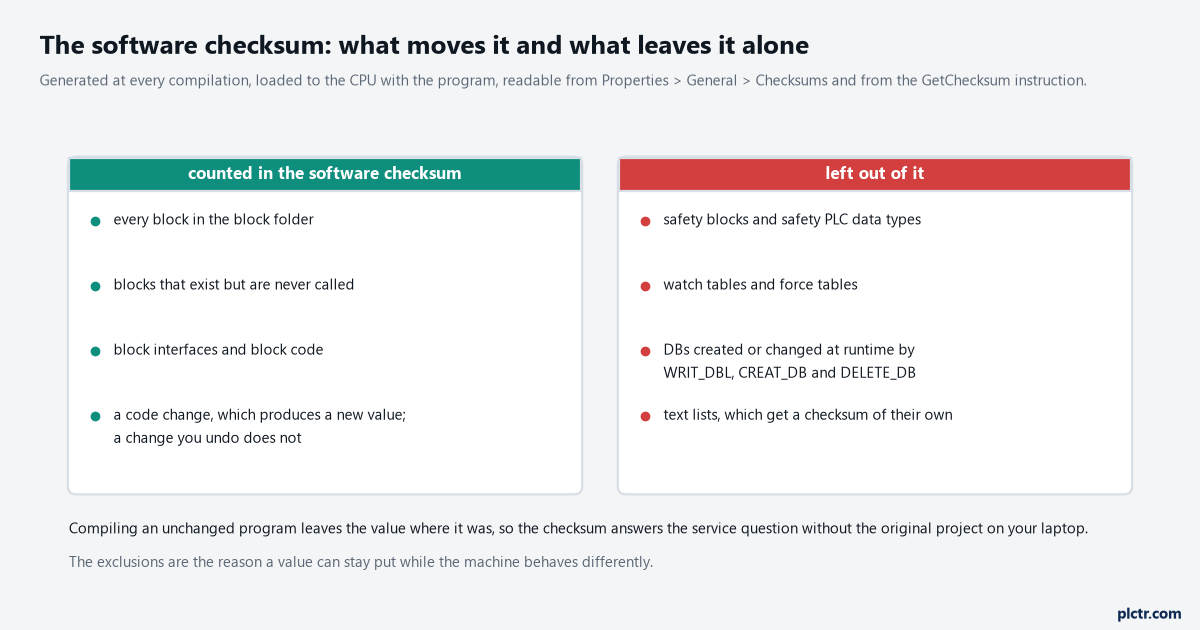
What the software checksum covers and what it ignores. The exclusions are the reason a value can stay put while the machine behaves differently.
What to do with this before the next download
Run the comparison before you go looking for a difference, and read which category moved rather than the summary symbol. A comment-only edit moves the multi-language comments checksum and leaves the code checksum alone, which is a perfectly good reason to leave the CPU untouched. Record the software checksum in the same file as the IP addresses, because six months from now it is the only thing that answers whether the CPU is running what the project says. If a block refuses a detailed comparison, check whether it is know-how protected before assuming anything is broken, and if the difference turns out to be real and the values in the instance DBs matter, read what download without reinitialization will and will not preserve before you press the button. The mechanics of getting a program up and down are covered separately in downloading to and uploading from the PLC, and the habit of writing the checksum down belongs with the rest of your program documentation.