The size of the .ACD file tells you nothing about what is in the controller. 1756-RM100 puts it in one line — the .ACD file contains multiple components, and not all components are downloaded to the controller — and the gap between those two things is where a restore at three in the morning goes wrong. So, the short version, before any of the detail. ControlLogix backup and restore works when three things are true at once: there is an .ACD on a machine that is itself backed up, the same project is stored on the controller’s SD card with a Load Image setting you chose on purpose, and the controller’s firmware revision is written down next to the file. Two out of three is the state most machines are in, and two out of three is what fails.
Written against Studio 5000 Logix Designer v36, a 1756-L83E with a 1784-SD2 card, and a CompactLogix 5069-L330ER. Where the 5580 and the 5570 behave differently the text says which.
Upload, or the file you already have?
Both, and in that order, because they answer different questions.
The file on the laptop is the one with your rung comments, your tag descriptions and your revision history in it. The controller is the one that is actually running the machine, and the two disagree more often than anybody admits — online edits that were never saved back, a setpoint somebody changed in Program mode, a module added during a breakdown at two in the morning. What you want is the running program captured into a copy of the documented file, which means opening the .ACD you have, going online, and taking an upload into it rather than uploading blind into a new project. Do it the other way round and you get a faithful copy of the logic with every comment stripped out, which is a backup of the machine and not a backup of the engineering.
Going online is itself a comparison, not just a connection.
For a safety project the software checks the controller serial number if Match Project to Controller is selected, whether the offline project has changes the controller does not, whether the revisions of the offline project and the controller firmware match, whether either side is safety-locked, and whether the safety signatures are compatible. The upload arrives through the Connected to Upload dialog box, where you confirm the project before it copies. One thing to know before you click it, straight out of the 5580 user manual: when the controller and the application are online, the safety-lock status and safety signature of the offline project are overwritten by the controller’s. If you do not want those changes to be permanent, do not save the project file afterwards. That is a sentence worth reading twice if your habit is to hit Ctrl+S on everything. One naming change to expect if you are moving between versions of the software. With Studio 5000 Logix Designer v38 and later, RSWho and Who Active became the Network Browser. Same dialog, same job, different word on the menu, and it catches people who learned the software years ago.
Storing to the card, and the two settings that decide everything
The store itself is short. The two dropdowns in the middle of it are the whole subject.
Put the controller in Program mode, go online, open Controller Properties, and choose the Nonvolatile Memory tab, then Load/Store. The dialog shows you the image currently on the card on one side and the project currently in the controller’s user memory on the other, and the Store button moves the second onto the first. The application goes offline while it works, and you stay offline when it is done, which surprises people the first time. On a 5580 the status display reads SAVE and the SD and OK indicators flash green while it happens. If the card is locked, Store is simply not active and a message appears in the lower-left corner of the tab telling you so — that little message is the answer to most “the store button does nothing” questions.
Before you press it, two fields:
Load Image decides when the controller pulls the project back off the card, and it has three settings. Load Mode decides what mode the controller lands in after that load, either Remote Program or Remote Run, and it only applies to the two automatic settings.
| Load Image | When the controller loads from the card |
|---|---|
| User Initiated | Only when somebody does it from the Logix Designer application |
| On Power Up | Every time you turn on or cycle chassis power |
| On Corrupt Memory (5570) | When there is no project in the controller and you cycle power |
| On Uninitialized Memory (5580) | The 5580 setting that replaces On Corrupt Memory |
1756-RM100 spells out what the 5580 does at power-up for each setting, across three states of controller, and the table is worth having because the out-of-box case is not intuitive. Every Logix 5000 controller ships with firmware revision 1.x. Put a card with an image into one of those and at power-up the controller updates its firmware to the revision on the card regardless of which Load Image setting you chose when you made it. With firmware above 1.x and valid memory, On Power Up loads firmware if there is a mismatch and then loads the application, while On Uninitialized Memory does nothing at all — which is exactly what you want, and exactly the difference that makes On Uninitialized Memory the sane default for a machine in production.
Choose them at the moment you store, not at the moment you need them.
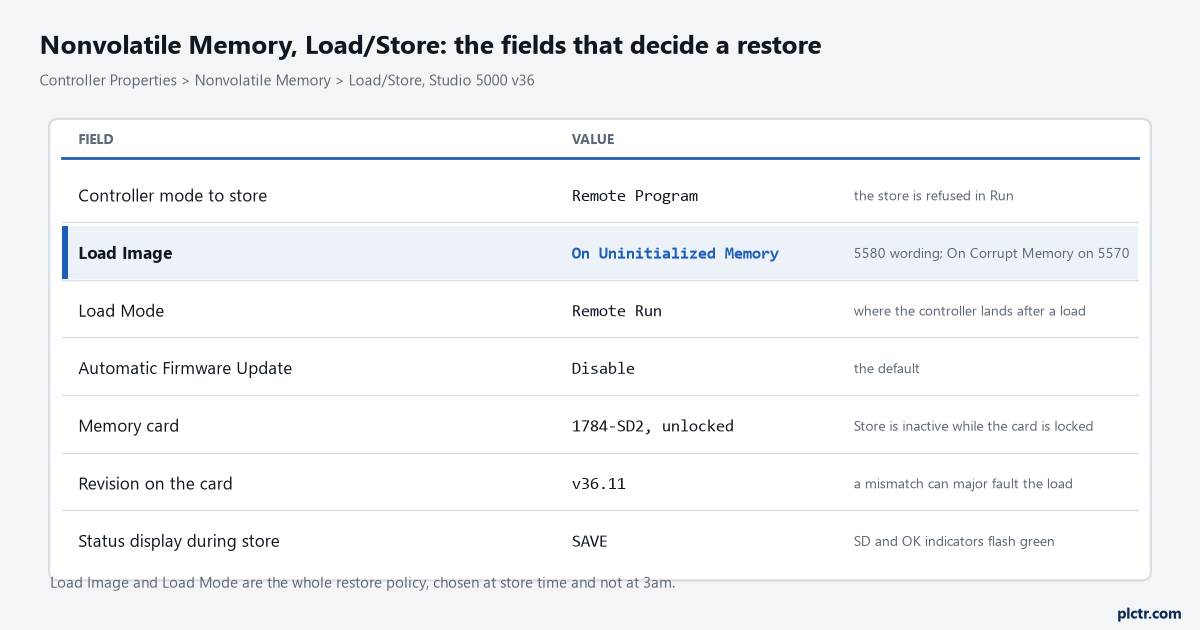
Load Image and Load Mode are two clicks and they are the whole of the restore policy. A card stored with User Initiated will sit in a dead controller at 3am doing nothing at all.
Where the copies actually live
Three places hold a version of the program, and only two of them are under your control.
The laptop holds the .ACD, with everything in it including the components that never travel to the controller. The controller holds the compiled project in user memory, which is what is running. The SD card holds a stored image, which is a snapshot of the controller’s memory at the moment somebody pressed Store — not a live mirror, not automatic, and no more current than the last time a human did it. The card can hold more than one project, since it uses a FAT16 file system and storing a project with a name already on the card overwrites that project and leaves the rest alone. When a load happens automatically, the controller loads the most recently stored project.
A snapshot is only as current as the last person who took one.
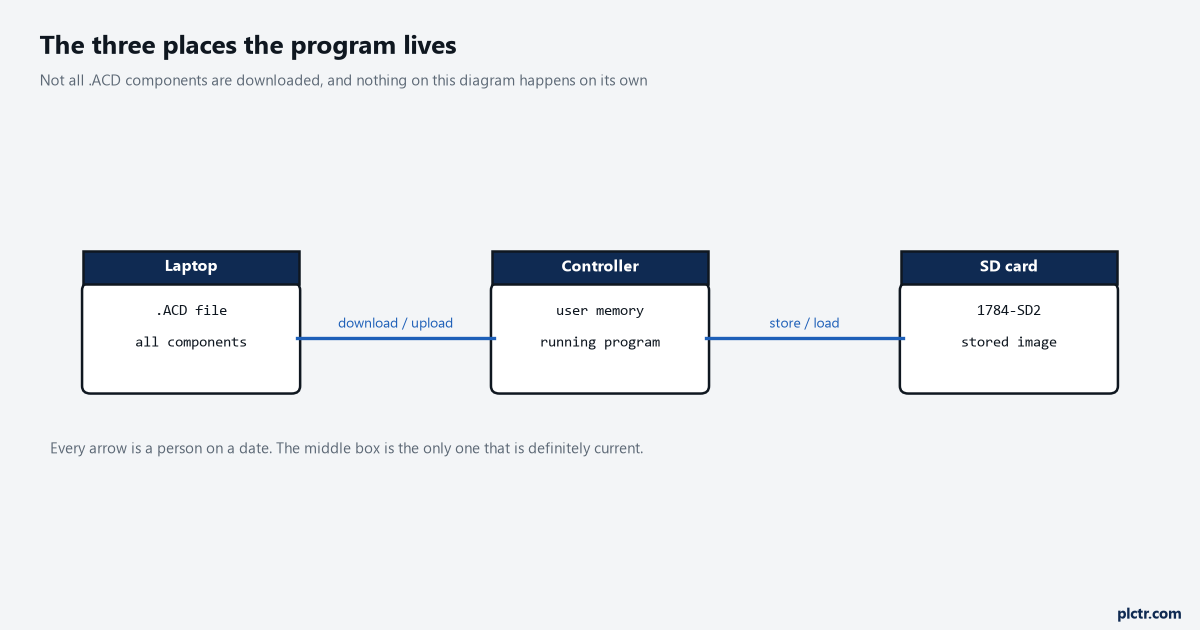
Nothing here is automatic. Every arrow is something a person did, on a date, and the middle box is the only one that is definitely current.
Firmware and the project revision have to agree
This is the failure that turns a twenty-minute job into a lost shift, and it is entirely avoidable.
1756-PM017 states the rule without qualification: if the major and minor revisions of the project on the memory card do not match the major and minor revision of the controller, a major fault may occur during a load. That is the mechanism behind most horror stories about SD cards. The card is not doing anything wrong — it is loading exactly what you told it to load into a controller running different firmware. The consequence lands hardest during a firmware update. If you update firmware with a card still installed and the Load Image set to On Power Up or On Corrupt Memory, the controller loads the project from the card during or after the update, the revisions no longer agree, and it faults. So 1756-PM017 gives you two ways to avoid it: physically remove the card before you start, which also stops the update from setting the card’s Load Image to User Initiated behind your back, or check the setting and re-store the project with User Initiated selected first. Either way, store the project to the card again once the update is finished, so that the revision on the card matches the revision in the controller. Skipping that last step leaves you with a card that will fault the controller the next time it does its job. And on a locked card set to load On Power Up, updating firmware with ControlFLASH risks the card’s firmware overwriting what you just installed; the manual says check the card’s write-protect tab before you start.
Proving the controller loaded from the card
You do not have to guess whether a restore happened, and this is the cheapest instrumentation in this article.
When a controller loads a project from a memory card it logs a minor fault, type 7 code 49, and sets bit 7 of the FaultLog object’s MinorFaultBits attribute. Two instructions on the first scan turn that into something an operator can see:
XIC(S:FS)  GSV(FaultLog, , MinorFaultBits, minor_fault_bits)

XIC(minor_fault_bits.7)  OTE(NVM_load)
NVM_load set means the program now running came off the card rather than from anyone’s laptop. Put it on an HMI banner. A machine that quietly reloaded an eighteen-month-old image after a power event, and then ran on it for a week, is a thing that happens, and this is the two-rung version of never finding out that way.
Two instructions, and the machine stops being able to lie to you.
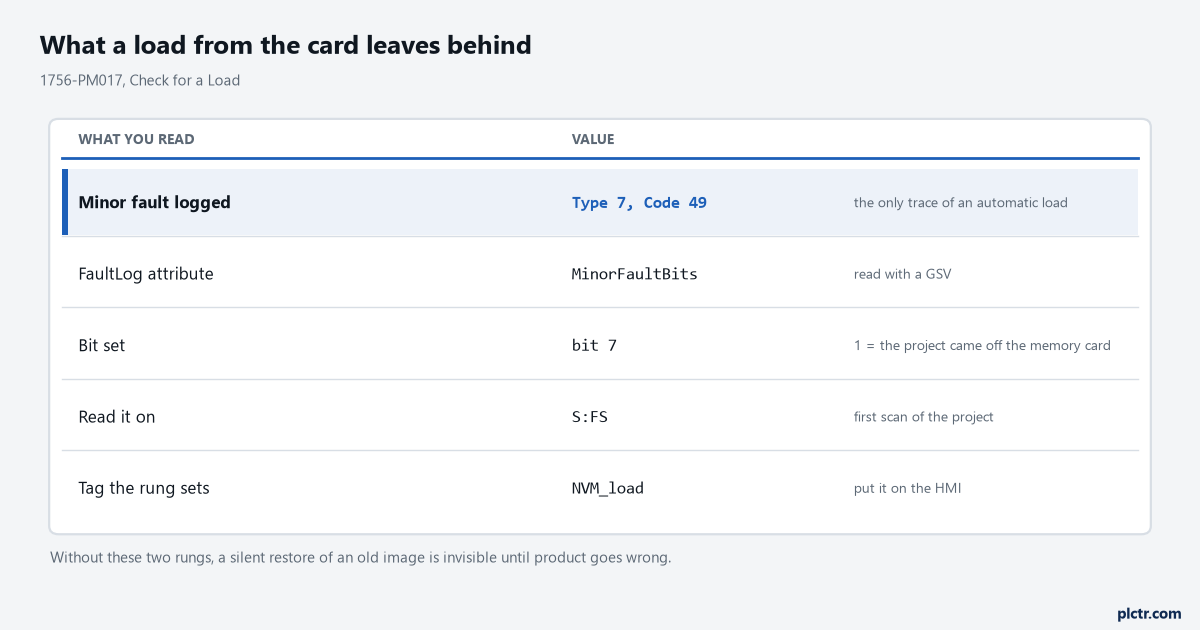
Type 7 code 49 is the only trace a silent automatic restore leaves. Without the GSV rung, it is in the minor fault log and nowhere the operator will ever look.
What a backup taken the wrong way will not give you back
The honest section, and the reason to read the rest twice.
Anything not stored since the last edit. Rockwell’s wording covers this directly: during a power cycle, online changes, tag values and network schedules that you have not stored on the memory card are lost. A card stored in 2024 restores the machine as it was in 2024, including the recipe values and every setpoint tuned since. The logic will look right. The product will not.
The documentation, if you uploaded into a new project. An upload gives you a working program. Comments and descriptions you never had in the file are not created by the act of uploading.
An exact replica, on a 5570 with aliases. 1756-RM100 documents the improvement and in doing so documents the old behaviour: projects containing program parameters and aliases are now consistently reproduced on the 5580, and the uploaded ladder source is an exact replica of what was downloaded. That was not the case in 5570 controller ladder diagram subroutines which referenced aliases or program parameters. So an upload from older hardware is a recovery rather than a copy, and it wants verifying against the machine before you trust it as the master.
Your offline safety state, if you saved after going online. The safety-lock status and safety signature of the offline project get overwritten by the controller’s when you connect. Save at that point and your master file now claims whatever the controller happened to be.
A safety restore that skips the unlock. On a GuardLogix, updating from a memory card works when the safety signature stored on the card matches the project in the controller. If the signatures do not match, or the controller is safety-locked with no signature, the safety lock has to come off first — and after the load completes, the safety-lock status, the passwords and the safety signature are all set to the values that were on the card.
Firmware, if you assumed the card carries it. The card stores firmware for projects of revision 12.0 or later. Below that, the card carries a project and nothing else, and a bare replacement controller stays bare.
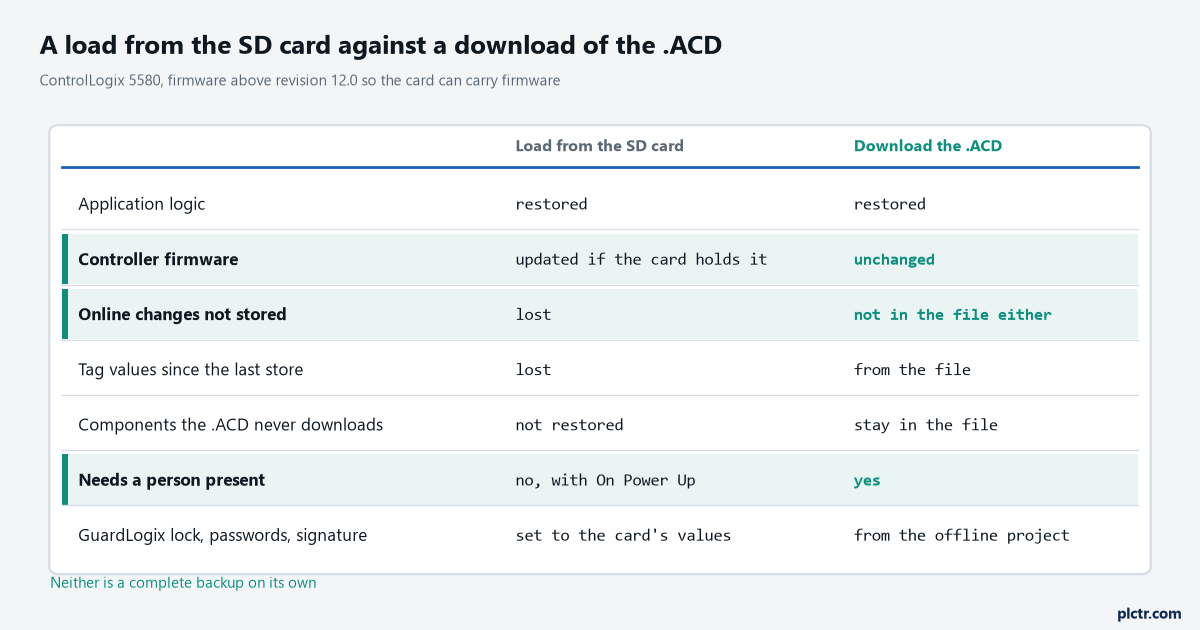
Neither column is a complete answer on its own. The rows that differ are the reason a real backup routine has both a card in the controller and a file somewhere else.
A ControlLogix backup and restore routine that holds up
Four habits, and none of them takes long:
- Leave the SD card in the controller permanently. The CompactLogix 5380 ships with a 1784-SD4 card in it, and Rockwell’s own advice is to leave it installed, because the card also saves extended diagnostic information that technical support can use after a non-recoverable fault.
- Store to the card at the end of every visit where you changed anything, and set Load Image deliberately rather than leaving whatever the last person chose.
- Name the .ACD with the firmware revision in it.
LINE4_MAIN_v36_11.ACDanswers a question that otherwise needs the controller to be alive to answer. - Put the first-scan GSV rung in, once, in every project you own.
The one people skip is the third, and it is the one that matters when you are standing in front of a dead controller deciding which of four files to trust.
Next
Go and look at the Nonvolatile Memory tab on one controller you are responsible for, and find out whether a project is even stored on the card and what its Load Image setting is. If the tab tells you the card is empty, you have found the thing to fix today. If you need to change firmware at the same time, read the order of operations in the controller firmware upgrade article before you take the card out, and if you are unclear on the upload and download mechanics themselves, getting the program in and out of the PLC covers the basic path. A load that goes wrong shows up in the fault log, so keep the major fault codes and the minor fault codes to hand for reading whatever it logs. And before you hand the machine back, walk past the controller and check the front panel for a force somebody left installed, because a restored program and an overridden input look identical from the office.