A spare CPU comes out of the store, you plug in, you load, and TIA Portal stops with a message about the firmware version of the device being lower than the version configured. Nothing was written, the machine is still down, and the shift supervisor is standing behind you. An S7-1200 firmware mismatch is not a broken CPU and it is almost never a broken installation of TIA, so the advice to reinstall the software costs you an afternoon for nothing. This walks through what the tool is comparing, how to read the two numbers that decide your options, and which of the three ways out is the right one for the hardware in your hand.
| What you need | Detail |
|---|---|
| Engineering station | TIA Portal V15.1 or newer, V17 and V18 behave the same here |
| Project | An archive of the working project before you touch anything |
| Access to the CPU | Ethernet to the PROFINET port, or a card reader for the firmware route |
| From the CPU itself | The full article number and the firmware version, read from the device |
| Optional | SIMATIC memory card, only if you go the firmware update way |
What TIA is comparing when it stops the load
The project holds a configured device: one article number and one firmware version. The CPU on the panel holds a real firmware version. The load is allowed when the configured version is the same as the real one or lower than it. It is refused when the configured version is higher, because the project may contain settings and instructions that the older firmware has no idea about.
The reverse case surprises people. A project configured as V4.5 loads into a CPU running V4.6 and the machine runs normally. What you get is a difference between online and offline in the device view, which is a comparison result and not a fault. That is the state many plants sit in for years without noticing.
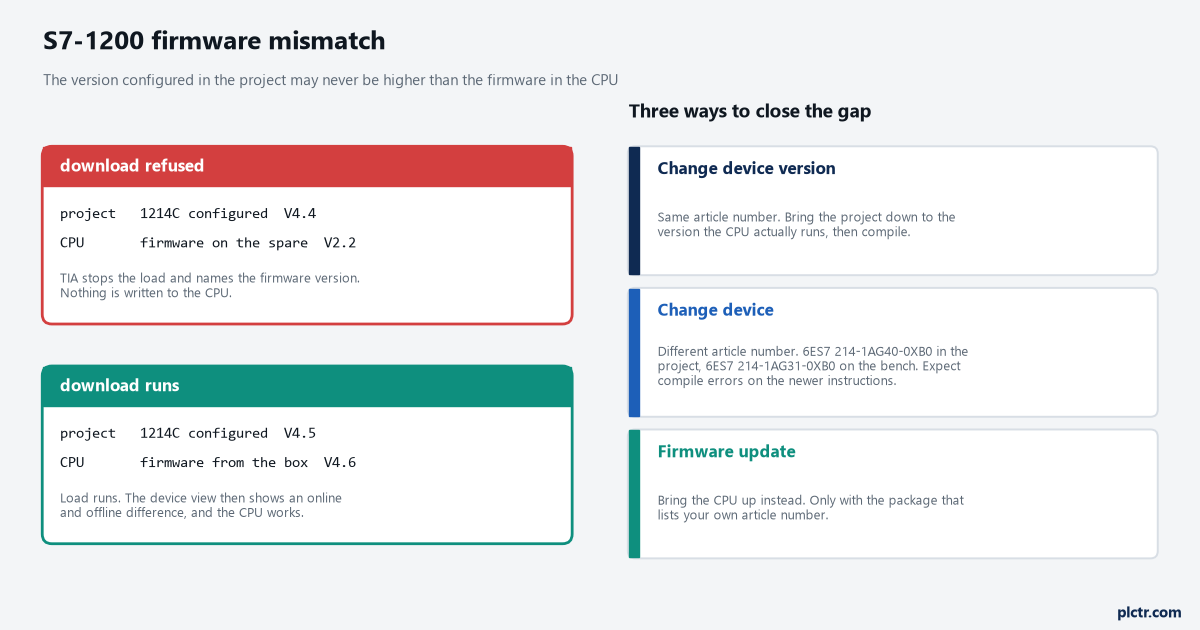
The exact wording of the message moved around between TIA versions, so do not spend time matching the string. Treat any mention of firmware version in a failed load as this comparison.
Read the article number and the real firmware before you open a dialog
Two numbers decide everything that follows, and both belong to the CPU in front of you, not to the bin label or the work order.
- Read the full article number from the sticker on the side of the CPU. It matters to the last character. 6ES7 214-1AG40-0XB0 and 6ES7 214-1AG31-0XB0 are both a 1214C DC/DC/DC and they are different hardware generations.
- Go online and read the firmware the CPU actually runs. Under Online access, pick the adapter, update the accessible devices, then open Online and diagnostics for the CPU. The diagnostics page for the module lists the article number, the hardware version and the firmware version as the device reports them.
- Compare that with the project. Select the CPU in the device view, open its properties and look at the catalog information, which carries the configured article number and version.
If the label and the online view disagree, the online view wins. Labels get swapped when a CPU comes back from repair.
Pick the route that fits the hardware
| Route | Use it when | What it costs |
|---|---|---|
| Change device version | The article number in the project matches the CPU and the version list reaches down to the firmware the CPU runs | A compile, and rework of anything the older firmware does not support |
| Change device | The CPU is a different article number from the one in the project | The same rework, plus a check of the hardware configuration afterwards |
| Firmware update | The CPU is the article number the project expects and Siemens publishes a package for it | Twenty minutes, a genuine memory card, and a CPU that must not lose power mid update |
There is a fourth answer that is not a route: configure the project for the lowest firmware version you keep on the shelf. A plant with V4.2 and V4.6 spares in the same store is better off with every project configured as V4.2, because then any spare loads.
Change device version, step by step
- Archive the project. The version change is not a mouse click you undo cleanly.
- Right click the CPU in the project tree or in Devices and networks and choose Change device version. The entry has moved between menus across TIA versions, so if it is not where you expect it, work through the right click menu of the CPU itself.
- The dialog lists the versions available for that article number. Pick the one the CPU reported.
- Compile the hardware configuration and the software separately, so you see which errors belong to which.
- Work through the errors. Settings that the older firmware does not have, such as parts of the web server, OPC UA or the protection level, are dropped or reset, and they do not always announce themselves.
- Download, then check the retentive data and the clock.
Step 5 is where the time goes. Write down what you changed while you change it, because the swap back to proper hardware happens later and usually with someone else on the keyboard. A project that already carries a change log makes that handover survivable, which is the practical argument in PLC program documentation.
When the version list does not go low enough
If the list only offers V4.0 upwards and your CPU says V2.2, you are not looking at the same hardware. The version list belongs to the article number configured in the project, so a different generation needs Change device rather than Change device version.
Right click the CPU, choose Change device, then pick the correct article number from the catalog tree and its version. TIA keeps what it can carry over, including the I O addresses and the network settings, and it drops what the target does not have. Compile and expect the errors in the blocks rather than in the hardware. Instructions that arrived with a later firmware are not in the older instruction set, and the compiler names every one it cannot resolve.
Rework those blocks against the older instruction set and the machine runs, because the underlying controller is the same family. What you have built is a second variant of the project, and it needs its own name and its own note in the revision history.
Updating the firmware instead
Going up is the cleaner answer when the article number matches and you want the project untouched. Siemens publishes update packages per article number on Industry Online Support. Check that your own article number is named in the package before you commit. If it is not listed, the package is not for your CPU, whatever the family name on the download page says. Never guess an article number from another machine.
The memory card route works without an engineering station. Write the update package onto a genuine SIMATIC memory card, keeping the folder structure the package ships with, power the CPU down, insert the card, and power up. The CPU runs the update on its own and signals the end through its LEDs. The readme in the package names the pattern to expect and it is worth reading, because the difference between finished and waiting for you to remove the card is one blink.
Two rules from people who have lost a CPU. Nothing interrupts the power during the update, so a UPS or at least a taped-over breaker handle. A plain SD card is not a SIMATIC memory card, and no amount of correct folder structure changes that.
After the update, go online, confirm the firmware version the CPU now reports, then download the project and verify the retentive values.
Field notes
The store bin lies more often than the CPU does. A dosing skid lost a day because the spares bin was labelled with the article number of the dead CPU while the CPU inside was an older generation with V2.2 firmware. The fix took twenty minutes once somebody read the sticker. Put the article number and the firmware version on the spare when it goes into the store, not when it comes out.
Card write protection is a different message. A slid-over write protect tab on the memory card and a firmware mismatch both stop a download, and both get blamed on the card. Read the message: one talks about the card, the other about the version. Chasing the wrong one is how a fifteen minute job becomes an evening. More of that kind of triage is in advanced PLC troubleshooting.
Nobody wrote down the downgrade. A project brought down from V4.4 to V2.2 in a hurry kept running for eight months. When the proper spare arrived, the two reworked blocks had to be found by reading the whole program, because the change lived only in the memory of the engineer who made it.
Frequently asked questions
Can I configure a lower firmware version than the CPU actually runs?
Yes. The load is allowed and the CPU runs the project. TIA shows a difference between online and offline in the device view, and that is all it means. Many sites do this on purpose so that any spare on the shelf will take the project.
Does a firmware update wipe the program?
Treat it as though it does. Have the project on the laptop and be ready to download and to restore the retentive values before you start the update, whether or not the package says the program survives.
Why does Change device version not list the version I need?
The list comes from the hardware catalog for the article number configured in the project. If the CPU is another article number, use Change device. If the CPU is newer than the catalog entry, the catalog needs a hardware support package for that version.
Next step
Take ten minutes on the spares while the memory is fresh. Read the article number and the firmware version off every S7-1200 in the store, write both on the box, and decide the lowest firmware version your projects will be configured for. The hardware side of that inventory is covered in PLC hardware and software components.