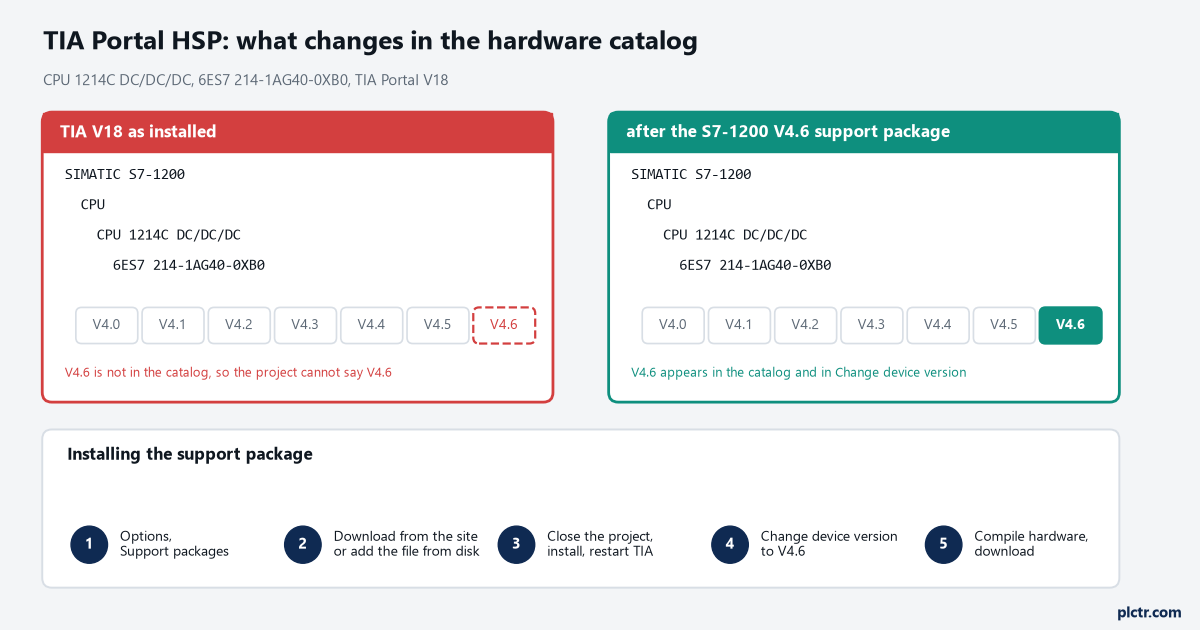
A CPU comes out of the box with firmware V4.6 on the label, the hardware catalog in TIA Portal V18 stops at V4.5, and Change device version offers nothing above it. The project cannot describe the device you are holding. A TIA Portal HSP, short for hardware support package, is the file that closes that gap: it teaches an installed version of TIA about hardware that did not exist when that version shipped. Below is how to tell whether you need one, how to install it on a site laptop with no internet, and why TIA insists on a full compile afterwards.
| What you need | Detail |
|---|---|
| Engineering station | The TIA Portal version you actually use, V15.1 through V20 all work the same way here |
| Article number | Read from the device, for example 6ES7 214-1AG40-0XB0 for a 1214C DC/DC/DC |
| Firmware version | Read from the label and confirmed online under Online and diagnostics |
| The package | The support package file for that device and that TIA version, an .isp file |
| Rights | Local administrator on the engineering station, the same as for a TIA update |
What a support package is and what it is not
An HSP carries device descriptions. Installing one adds catalog entries, nothing else. It does not change your TIA version, it does not fix bugs in the editors, and it does not need a licence.
Three consequences follow from that, and all three catch people out.
Packages are tied to one TIA version. A package built for V18 will not install into V17, and the V17 machine in the panel shop stays where it is until someone buys the upgrade.
Packages are tied to one device or device group. The S7-1200 V4.6 CPUs come in their own package, ET 200SP modules in another. There is no single file that brings everything up to date.
The catalog is per engineering station, not per project. Install the package on your laptop and the colleague opening the same project on the next desk still sees the old catalog, with a device that his TIA cannot resolve.
And a support package is not a TIA Portal update. Updates and service packs arrive through the Siemens Automation Software Updater or as their own installer, they carry fixes to the software itself, and they move the version string you see under Help and then Installed software. A package leaves that string alone and only adds catalog entries. Asking IT to approve a TIA upgrade when all you needed was one .isp file costs weeks on a locked down site.
Check first whether you actually need one
Read the article number off the device before you go looking for a file. Two very different situations produce the same empty feeling in the catalog.
The catalog knows your article number and only the version is missing. That is the support package case. The device family is in TIA, Siemens added a firmware version later, and the package fills it in.
The catalog does not know the article number at all. That is a new module or a new generation, and a package may exist or may not. Some hardware is only supported from a given TIA version upwards, and no package will bring it into an older one. The download page for the device tells you which TIA versions are covered. Read that line before anything is ordered, because it is also the answer to whether the panel shop laptop will be able to open the project at all.
While you decide, remember that a configured version lower than the real firmware is a legal configuration. Configure the CPU as V4.5, download, and the V4.6 CPU runs the project. What you get is a difference between online and offline in the device view, and a machine that works. That is a fair answer for a Friday night and a poor answer for a project you hand over, because the next person cannot tell a deliberate choice from an accident.
Install the package
- Get the file. On an online station, open Options and then Support packages, and let the dialog list what Siemens publishes for your TIA version. On a site laptop with no connection, download the .isp somewhere else and copy it over. The dialog has a button to add a package from the file system, and the wording of that button moved around between versions, look along the bottom of the support package dialog.
- Close the project. TIA will not install a package with a project open, and it asks rather than telling you why.
- Select the package and install. Take the prompt about closing TIA seriously, because the install finishes during the restart.
- Start TIA again and check that the package is listed as installed in the same dialog. Help and then Installed software gives you the same list in a form you can screenshot for the project file.
- Open the project, right click the CPU, Change device version, and pick the version that is now there.
- Compile the hardware configuration, then the software, then download.
Step 4 belongs in the handover pack. A list of the support packages a project needs is as much a part of the project as the ACD or AP18 file, and it costs one screenshot. The habit is the same one argued for in PLC program documentation.
Why TIA wants to compile everything afterwards
Installing a package rewrites part of the device description database that TIA compiles against. The hardware configuration in your project was generated from the old descriptions, so TIA marks it as inconsistent and regenerates the system data from the new ones. The program blocks usually come through untouched, and the hardware compile is the one that does the work.
Let it run. A forced full compile after a catalog change is cheap, and it is the point where a device that is now described differently makes itself known, rather than during a download at two in the morning.
GSD and GSDML files are a different door
Support packages cover Siemens hardware. A third-party PROFINET or PROFIBUS device comes with a GSDML or GSD file from its own maker, and that goes in somewhere else: Options, then the entry for managing general station description files, point it at the folder, tick the file, install. The device then appears under Other field devices in the catalog, not among the Siemens entries.
People burn hours looking for an HSP for a barcode scanner or a third-party valve island that was never going to have one. If the vendor is not Siemens, ask the vendor for the GSDML. The protocol side of those couplings is in PLC networking and communication protocols.
Field notes
The project that only opens on one laptop. A machine builder configured an ET 200SP module that needed a package, shipped the project, and the end customer could not open the station. Nothing was wrong with the project. The customer’s TIA had no idea what the module was. The fix took five minutes once the right file was named, and three days to find out which file that was. Ship the package names with the project.
Downloading the package is the hard part on site. Site laptops are locked down and the support package dialog cannot reach the internet. Plan for that before you drive out: pull the .isp for anything new on the job while you are still in the office, and keep a copy in the project folder.
The wrong TIA version on the shelf. An HSP for V18 does nothing for the V16 installation that the maintenance team still runs, and the CPU in question could not be configured there at all. That is a purchasing conversation, not a technical one, and finding it out early saves a commissioning day.
Frequently asked questions
Do I need a new TIA version every time Siemens releases a firmware?
No. A new firmware version for hardware your TIA already knows is exactly what a support package is for. A new device family is the case where you may need a newer TIA version, and the device download page states the minimum.
Can I install a package while my project is open?
No. Close the project first, then install, and let TIA restart. Nothing is lost by the restart, but an install started with a project open simply will not run.
Is it a problem to leave the CPU configured one version lower than it runs?
It works and it is allowed. The device view will keep showing an online and offline difference. Fix it when you can so that a real difference stands out instead of hiding in a known one.
Next step
Make a list of the support packages each of your engineering stations carries, and put it next to the TIA version and update level in the same note. It turns the question of whether a project will open on a given laptop into a lookup rather than an experiment. If you are setting up a new station from scratch, the hardware side of the inventory is covered in PLC hardware and software components.