The numeric display is assigned {::[CLGX]Program:Packer.Bag_Count}, the value counts up all afternoon while the application is tested on a laptop, and the PanelView Plus 7 bolted to the machine shows four dashes. The tag is not the problem. The shortcut called CLGX carries two communication paths that are configured in two different places, and the runtime file went out with the one nobody filled in.
Here is the whole answer, before any of the detail underneath it.
A FactoryTalk View ME shortcut is a name that stands for one controller, and the tag path is that name in square brackets in front of the address: [CLGX]Bag_Count. The Machine Edition user manual writes the syntax as [AccessPath]Address, or ::[AccessPath]Address when the address itself contains a colon, and it states that the square brackets are part of the syntax rather than a sign that something is optional. For a FactoryTalk Linx data server that access path is the device shortcut name. What the Communication Setup editor does not announce is that it holds two configurations behind that one name, and only one of them travels in the .mer.
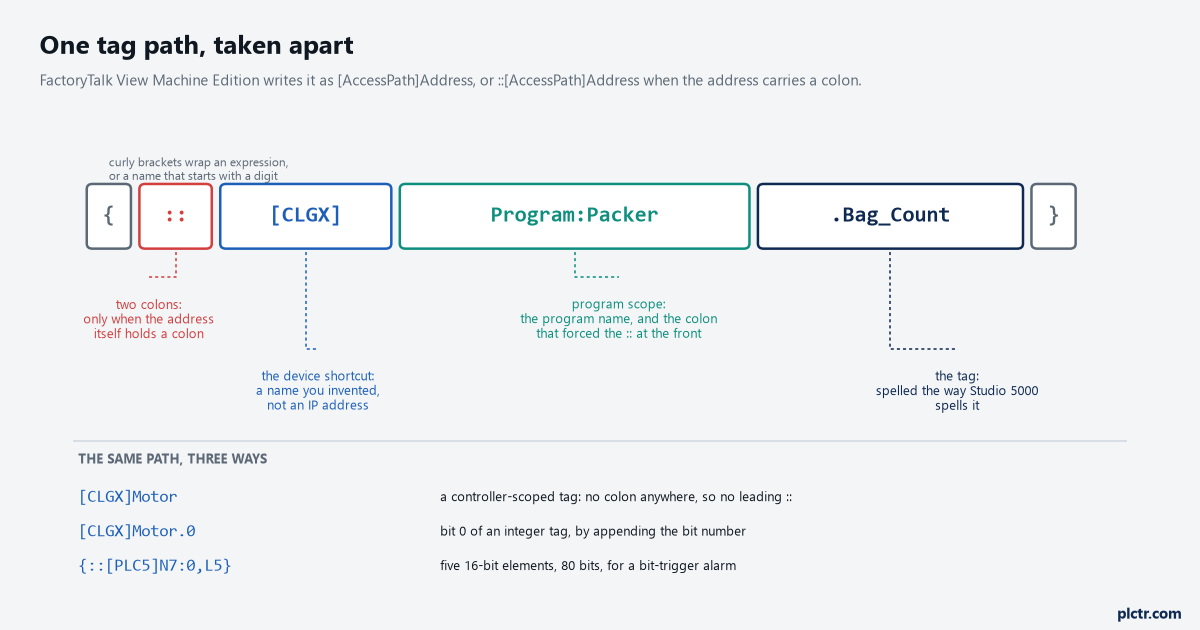
Every part of the path is doing a job. The two colons are only needed when the address after the bracket contains one, which on a CompactLogix means a program-scoped tag, and on a PLC-5 or SLC means every address you will ever type.
What the square brackets are actually naming
The access path is not an IP address and it is not a slot. It is a name you invented, stored per FactoryTalk application, that FactoryTalk Linx resolves into a route through the network when it is asked for data. The manual’s own example uses CLGX for a Studio 5000 processor and shows the shortest form of the address as [CLGX]Motor, with [CLGX]Motor.0 reaching the first bit of that integer. That indirection is the point of the thing: the graphic display knows nothing about where the controller lives, so the same .mer runs on a test bench and on the line with one edit in one dialog. It also means the display cannot tell you when the name resolves to nothing. A tag path that is spelled correctly and points at a shortcut with no working route looks exactly like a tag path that is spelled correctly and works.
That silence is the whole reason this article needed writing at all.
Design (Local) and Runtime (Target): why it works on the laptop
Open the FactoryTalk Linx data server under the application, double-click Communication Setup, and the editor opens with two tabs. The manual describes them in one sentence each, and the sentences are worth reading twice. The Design (Local) tab establishes where the tags and addresses live for editing, which can be an online controller or an offline controller file, and its job is to let the Tag Browser find things. The Runtime (Target) tab identifies the connection from the runtime computer or terminal to the controller. Those are two different journeys. Your laptop probably reaches the CompactLogix through a USB cable, or through the office side of a managed switch, or not at all because you are browsing an .acd
Copy is not a synchronisation. It is one-way, and it runs when you press it.
So the failure has a shape. Everything the Tag Browser and the test run touch lives on the Design tab, so the application tests clean; an empty Runtime path is not an error, so the .mer builds without complaint; and the terminal comes up with no data because the shortcut it was handed points nowhere at all.
Before blaming the network, open Communication Setup and look at which tab is populated.
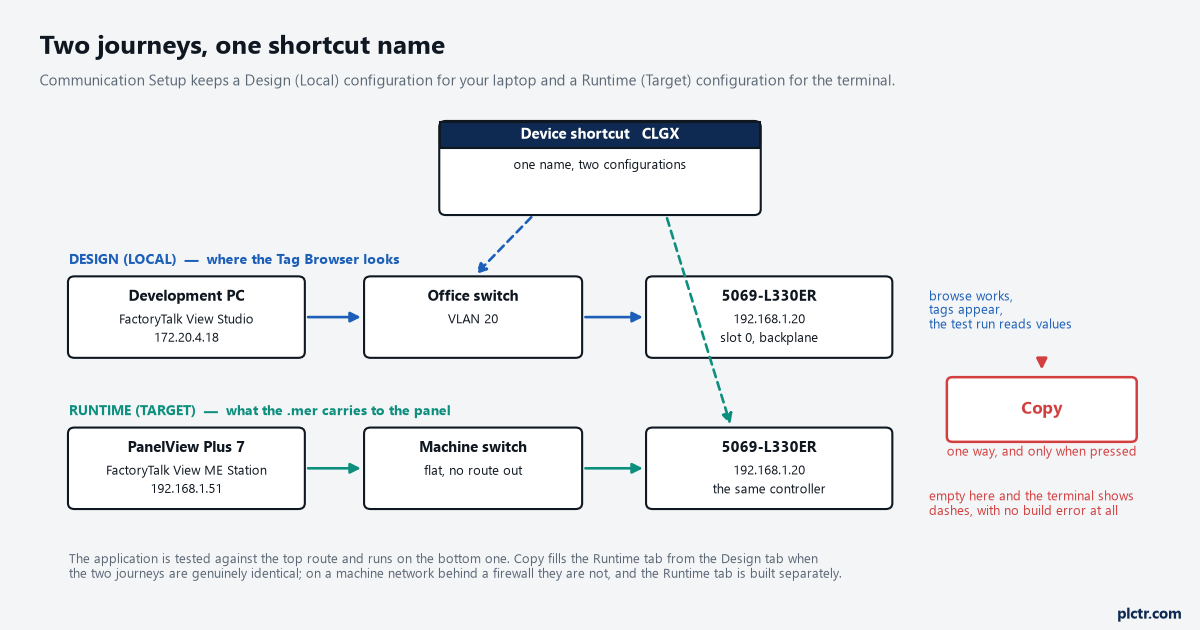
The shortcut name CLGX is the same on both tabs and that is all they share. The runtime application file carries the right-hand route; the browse that proved your tags exist used the left-hand one.
The two routes a shortcut stores, and the one that ages badly
From version 6.20.00 FactoryTalk Linx stores every shortcut path twice, and the Getting Results Guide shows both forms. The Network Path is written as EtherNet\10.224.107.97\Backplane\16 — the driver name, the IP address, the bus, and the slot number. The Device Path is written as 1756-A10/A.Data, where the first part is the parent device name and Data is the name of the project currently downloaded to the controller. Read that second one again, because it explains a fault that looks supernatural. A shortcut stored as a device path is partly keyed on the project name in the controller, so renaming a project and downloading it can leave FactoryTalk Linx unable to find a controller that is sitting there answering pings. The guide gives the parallel case for the parent name: change a 1756-A10 to a 1756-B10 and the device path stops resolving, and the fix is to open the Shortcut Verifier from the Communication Setup editor, click Synchronize, and choose Network Path as the method to sync from. Network Path is the default from 6.20 onward and the guide calls it the more resilient of the two. Which one your application uses is set under System, Policies, Product Policies, FactoryTalk Linx, Server Setting, Shortcut Policy.
A path keyed on a project name is a path with an expiry date on it.
One line in that section matters more to Machine Edition than to anything else: the shortcut policy for a FactoryTalk View ME application is decided by the configuration under the local directory.
Program-scoped tags, arrays, and the colon that needs two
Controller-scoped tags are the easy half. For a program-scoped tag the manual’s structure example is {::[PLC1] Program:Fermenter_Temp.Tank_PIDE01}, which is the shortcut, then Program: and the program name, then the tag inside it — and the Program: part is exactly why the two leading colons appear. For an array the syntax adds a length: {::[PLC5]N7:0,L5}
Curly brackets are needed around a tag name that starts with a digit or contains a dash.
One shortcut is all a PanelView Plus 7 Standard gets
The restrictions table in the Machine Edition manual is short and it decides architecture. A PanelView Plus 7 Standard application and a PanelView Plus 6 Compact application each have a maximum of one FactoryTalk Linx shortcut, so a screen that needs to show a value from a second controller on a Standard terminal does not get there by adding a second shortcut. The same table limits a PanelView Plus 7 Standard to 500 alarm messages, 1280×800, Ethernet drivers only when FactoryTalk Linx is used, and 100 displays where FactoryTalk View is version 11.00 or later, dropping to 50 on version 9 or 10 and 25 on the versions before those; the PanelView Plus 6 Compact gets 25 displays, 200 alarm messages, 640×480, and serial DF1, serial DH485 or Ethernet. If no FactoryTalk Linx shortcut is defined, one KEPServer Enterprise data server can be used to talk to a single device instead, and KEPServer Enterprise is the only OPC server supported on the PanelView Plus families. The Getting Results Guide adds one more line to the list: redundant paths are not supported by FactoryTalk View ME, so a shortcut type of Redundant Controller Path is not an option on a terminal even though the editor will offer it.
Two controllers on one Standard terminal means the data comes across in the controllers, not in the HMI.
Naming it: five characters that are not allowed
The guide is specific about the shortcut name. Use the name of the controller the tags live in, keep it unique within the FactoryTalk View application, keep it under 255 characters and as short as you can, and do not use a period, a right or left square bracket, a percent sign or a forward slash. Then the sentence everybody discovers the hard way instead of reading: do not give a FactoryTalk Linx shortcut the same name as an RSLinx Classic topic, because when a name is shared, tags stop appearing for one of them during a browse. On a machine that has been through two integrators this is a live risk, since PLC1 is the name both of them would have chosen.
Two minutes with the naming rules saves an afternoon with a tag browser that shows an empty tree.
When the terminal is the only place you can fix it
You do not always have the development application, and Machine Edition knows it. From FactoryTalk View ME Station, with the application loaded, open Application Settings, double-click Device Shortcuts, double-click the shortcut, pick the device it should point at in the Edit ShortCuts dialog, and close. The manual is clear about what happens next and it is the step people miss: a message asks whether to save the FactoryTalk Linx configuration into the runtime application file, and only if you answer yes does the change survive the next power cycle. Going the other way, a .mer from version 5.00 or later can be converted back to a development application with Restore runtime application in the Application Manager, and shortcuts that were edited at runtime do come back — but the manual warns that the Runtime tab may not show the device configuration afterwards, and that shortcuts which were valid on the terminal may be invalid or absent on your computer. Check that tab before you edit anything.
A runtime edit is a repair, and it is never a design decision.
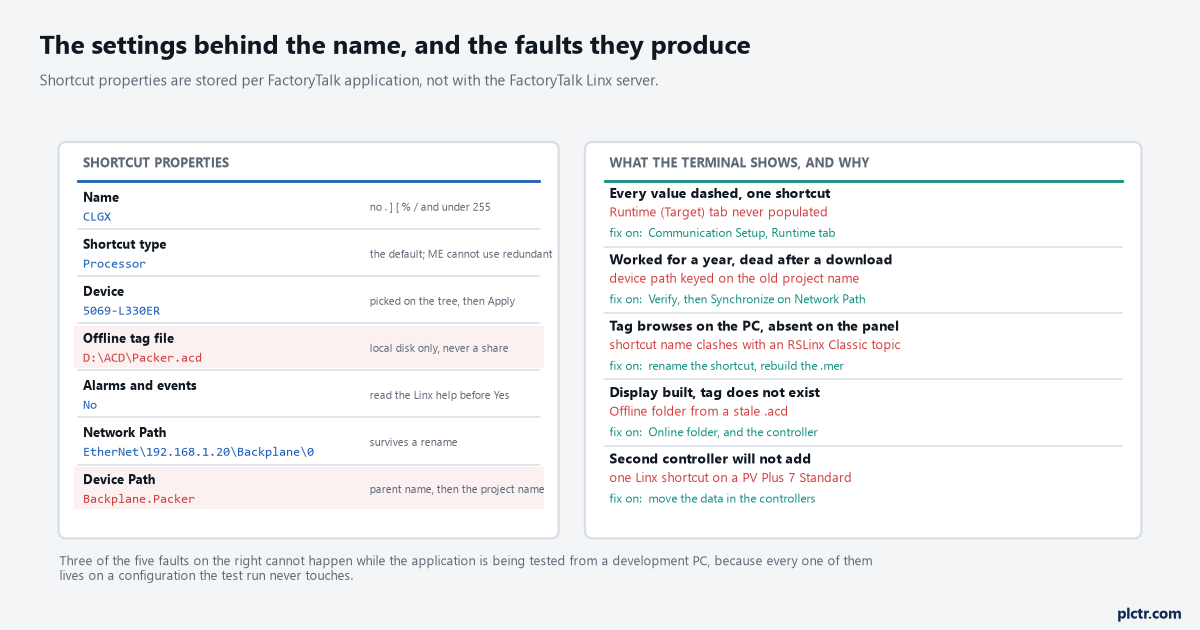
The properties on the left are per shortcut and per application. The table on the right is the order worth working in, because three of the five faults never appear while the application is being tested from a laptop.
Browsing offline, and what the Tag Browser is really showing you
For every FactoryTalk Linx device shortcut, the Tag Browser shows an Offline folder and an Online folder, and the difference is not cosmetic: the Online folder lists what is available when you are connected to the controller, and the Offline folder lists what comes out of an .acd file. That file is attached to the shortcut as the Offline Tag File, and the guide sets one condition on it that bites in a team: the .acd must be on the local computer rather than a network location, and it must be in the specified directory on every FactoryTalk Linx server machine associated with the shortcut. Browsing offline is how you build displays before the panel is powered, and it is also how you build displays against a program that is a revision behind what is in the controller. If a tag exists in the Offline folder and not in the Online one, believe the Online folder.
Go back to the Studio 5000 tag editor and find out which of the two is a revision behind.
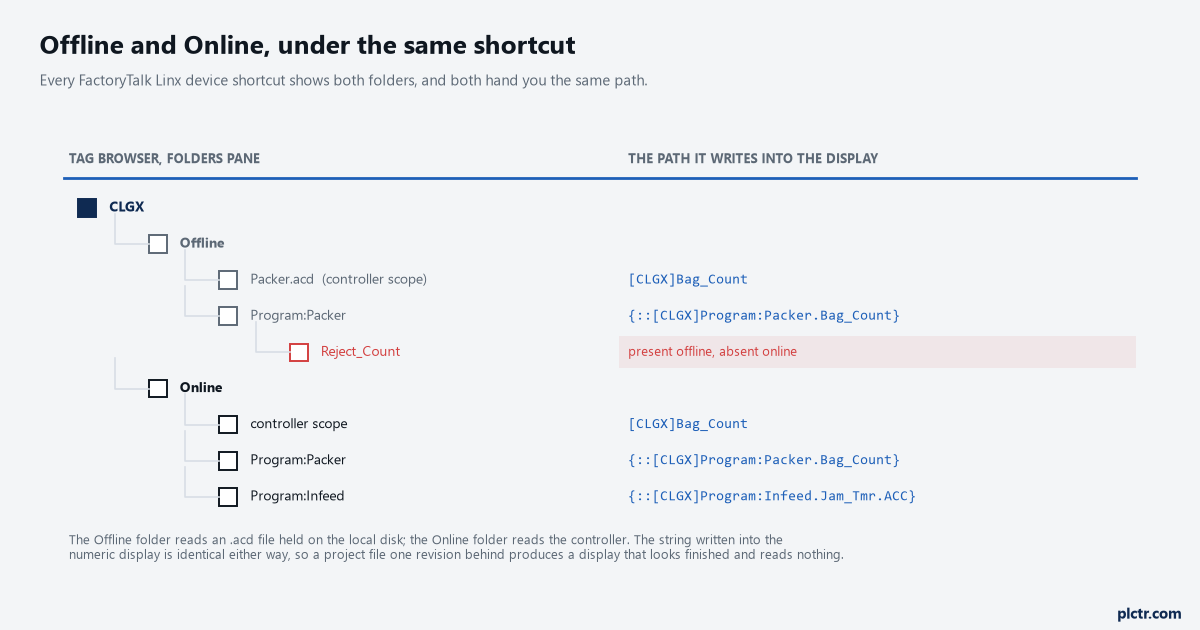
The folder a tag came from decides nothing about the string that gets written into the display. The path is the same either way, which is why a stale .acd produces a display that looks finished and reads nothing.
What to check, in order
Open Communication Setup and confirm the Runtime (Target) tab has a device highlighted and the shortcut applied there, not only on Design (Local). Click Verify and then Synchronize, with Network Path as the method, so the stored route does not depend on a project name. Confirm the terminal’s own address and the controller’s address are on the same subnet with a route between them; connecting through RSLinx from a machine sitting on the machine network is the quickest proof of that. Then check the value is really moving in the controller with the Studio 5000 watch window before you blame the HMI at all.
If you are starting from nothing rather than repairing, the display-side work is in building your first PanelView Plus screen, and the same shortcut idea scales up, with different rules and more than one of them, in FactoryTalk View Site Edition.