The 1734-AENT drops out for roughly six hundred milliseconds once a shift, never twice in the same hour, and the controller log says the same thing every time: the connection timed out. That sentence tells you the connection stopped. It does not tell you which end stopped it, and while you do not know that, you are swapping parts and hoping.
Mirror the adapter’s port to a spare port, capture both directions for a shift, and the gap in the file answers the question. If the adapter’s packets stop while the controller’s keep arriving, the fault is on the adapter side of that port. If both stop together, the switch stopped forwarding. If neither stops, whatever dropped is not on this link at all.
Port mirroring on a Stratix is a Smartport role, not a separate menu, and there are four fields and about four ways to waste an afternoon. Everything below is a Stratix 5700 in a cell with a 5069-L320ER, the 1734-AENT at 192.168.1.31 on a 20 ms RPI, and a PowerFlex 525.
Which port you mirror decides what you can prove
Mirror the wrong port and you get a clean capture of the wrong thing.
The mirror copies traffic passing through one source port, so the choice of source is the choice of evidence. Mirroring the adapter’s own port, Fa1/5, gives you what the adapter actually produced and the timestamp on each frame, which is the only way to separate “the adapter stopped talking” from “the switch stopped carrying it”. Mirroring the controller’s port, Fa1/2, gives you what the controller received, and with IGMP snooping doing its job that port only carries the multicast groups the controller joined — the two captures are genuinely different files, not two views of one. Mirroring the uplink gives you everything that leaves the cell, which is right when you suspect something outside the panel and wrong when you do not, because a shift of uplink traffic is a large file to carry around and search. Pick the port nearest the thing you doubt, and if you doubt two things, mirror one, prove it innocent, then move.
There is a second source available at no cost: the Ingress VLAN field lets you monitor a VLAN rather than a single port. Useful when the fault moves between devices, noisy when it does not.
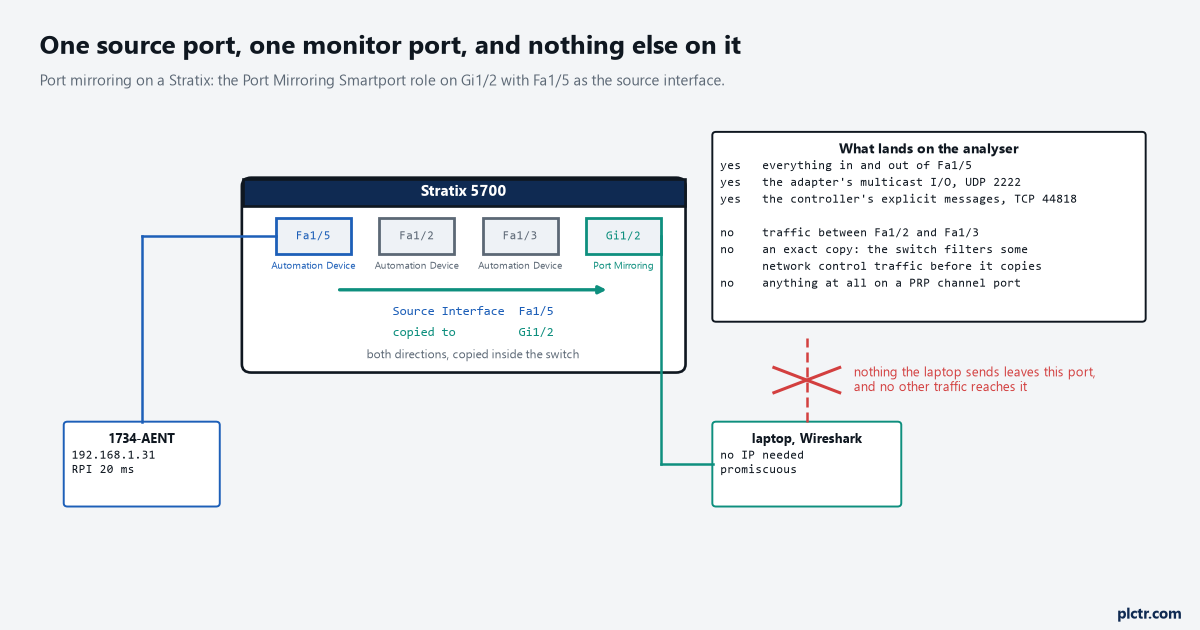
Both directions of one port, copied to one port. Everything else on the switch carries on as if the mirror were not there.
Four fields, and where they live
Configure, then Smartports. Not a Diagnostics menu, not a Monitor menu.
You tick the port that will do the monitoring — the one your laptop is plugged into — click Edit, and set Role to Port Mirroring. Interface Name is already filled in with the port you selected. Source Interface is the port whose traffic gets copied, and Ingress VLAN is optional. Submit, then go back and check the role stuck, because that is the only confirmation you get. Device Manager will set up one monitoring port and no more; if you need several, that is a CLI job. And because this is a Smartport role like any other, applying it resets that port’s VLAN to VLAN 1, which matters on a segmented cell and not at all on a flat one. The switch and VLAN layout is worth a glance before you start changing roles on a live panel.
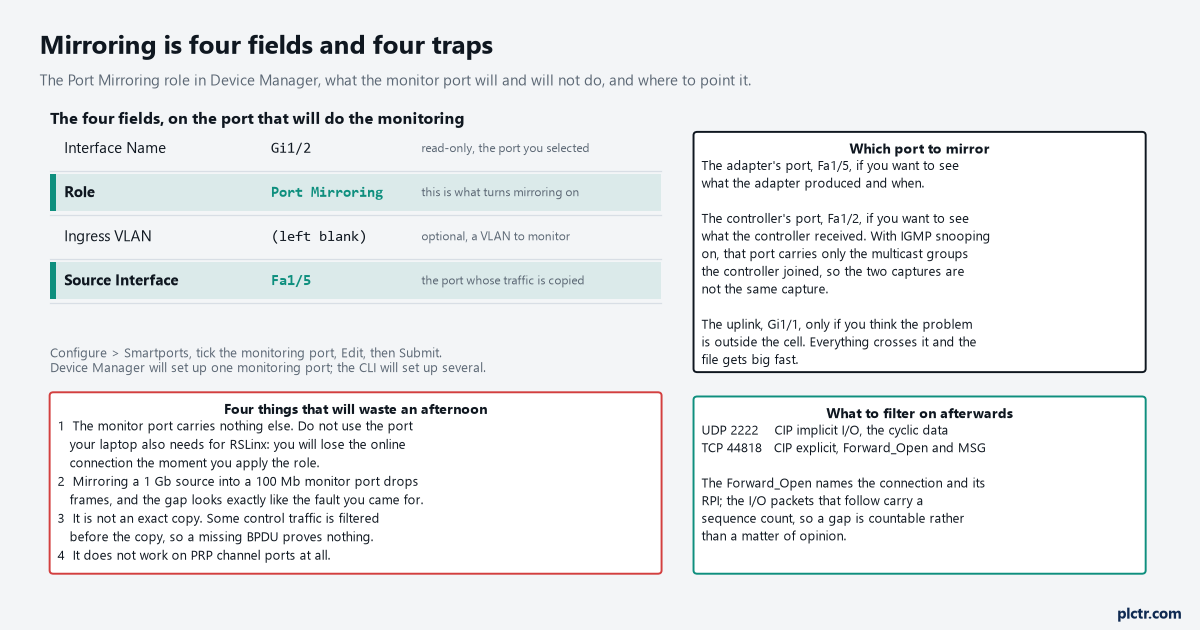
Role and Source Interface are the two fields that do the work. The other two are a label and an option.
The monitor port stops being a normal port
Apply the role and that port stops carrying anything except the copy.
The manual states it directly: except for the traffic being copied for the mirroring session, the monitoring port does not receive or forward traffic, so the laptop on it can see everything and reach nothing. That trips people who were already online in Studio 5000 through the port they have just turned into a monitor, lose the connection the instant they hit Submit, and conclude they have broken the switch — use a genuinely spare port, or accept a second cable for the online session. The traffic on the source port is untouched throughout, so mirroring never slows the adapter down or changes what the controller sees, which is the one thing that makes it safe to do on a running machine. There is a sizing check to do before you start, though, and it is the trap that produces the most wasted captures: copying a gigabit source into a hundred-megabit monitor port means the monitor drops frames whenever the source gets busy, and dropped frames in a capture look precisely like the fault you came to find, so match the speeds or mirror a 100 Mb port into a gigabit one and never the other way round.
Speed mismatch is the one mistake that manufactures the symptom you are hunting.
What the capture is not
It is not an exact copy of the wire, and the manual says so.
The switch filters certain network control traffic before it copies, which means the absence of something in the capture is weak evidence. If you are chasing a spanning tree problem and no BPDUs appear on the mirror, that is not proof that no BPDUs were sent; it may only be proof that the mirror does not carry them. Rockwell’s own wording is that port mirroring is a tool for analysing end node traffic and that you should not use it when you need an exact copy of all network traffic. For CIP data — the implicit I/O on UDP 2222 and the explicit messages on TCP 44818 — it is entirely reliable, and that is what you came for. There is also one hard limit: mirroring does not work on PRP channel ports at all, so on a redundant pair you capture somewhere else.
Reading the gap
Two lanes, one timeline, and the answer is which lane has the hole in it.
Open the file, filter to UDP 2222 for the cyclic data and split it by direction, because the two directions of a Class 1 connection are separate flows and they fail separately. On the capture that produced the figure below, the adapter’s last packet to the controller is at 120 ms and the next one is at 760 ms — a 640 ms hole. The controller’s packets toward the adapter never stop; they run at 20 ms right across the hole. That single fact eliminates the controller, the controller’s port, the switch fabric and the uplink in one step, because all of those would have shown up as a gap in both lanes. At 220 ms, a hundred milliseconds after the adapter’s last packet, the explicit lane on TCP 44818 shows the connection declared dead, which is exactly the four-intervals-of-RPI timeout with its 100 ms floor doing what it is specified to do. Then at 772 ms a Forward_Open goes out and at 812 ms the connection is open again. The adapter went quiet; nothing else did.
That is a power, a cable or a module problem on one side of one port, and now it is worth pulling that side apart.
Two lanes with one hole beats an hour of argument about whose equipment it is.
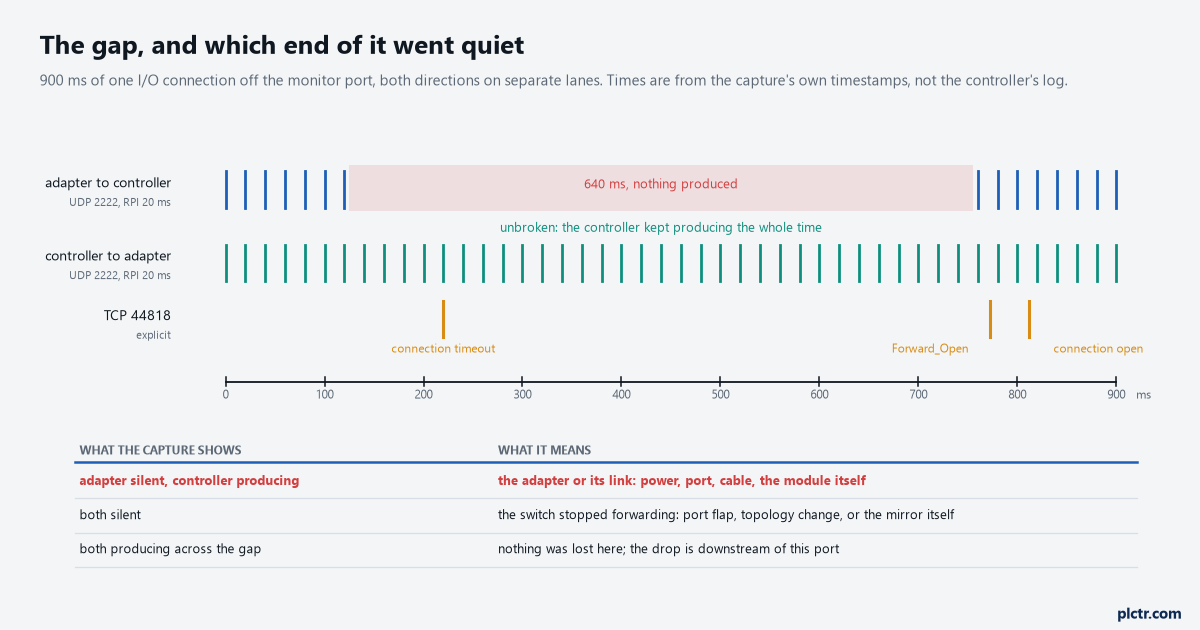
The controller lane is the control. Without it, a gap in the adapter lane could still have been the switch.
When both lanes go quiet
Then the mirror has done its job and handed the problem back to the switch.
Both directions stopping at the same instant means nothing crossed that port in either direction, and the causes worth checking are a port that flapped, a spanning tree topology change that put the port back through listening, and a physical layer that is quietly failing. The switch will tell you about the third one before the capture does: Monitor, then Port Statistics, and read the Receive Detail and Transmit Detail tabs for the source port. A large count of alignment errors, frame check sequence errors or late collisions on a port is the signature of a speed or duplex mismatch, which the manual names as the usual cause and which produces exactly this pattern — long stretches of fine behaviour and occasional total silence. Compare the counts against a port carrying a similar device; a healthy 100 Mb full-duplex link to an adapter should be sitting at zero, not at a slowly climbing number.
If the errors are climbing, stop reading captures and fix the link.
Catching something that only happens once a shift
Do not sit and watch. Set a ring buffer and go do something else.
An eight-hour capture of a 20 ms connection is a large file, and the part you want is under a second of it. Capture to a ring of fixed-size files so the disk cannot fill, leave the laptop on the panel door, and come back when the alarm has logged another drop. Then match the controller’s timestamp on that fault to the capture, open the file that covers it, and work outward from there. The clocks will not agree to the millisecond — the laptop and the controller keep time separately — so use the controller’s fault time to pick the file, then find the gap by looking for it rather than by trusting the offset. If you want the two clocks to agree properly, that is a time synchronisation job and a different afternoon.
Put the port back
When you are done, set the monitoring port’s role back to None or to whatever it was, and put its VLAN back with it. A port left in Port Mirroring quietly refuses to carry traffic, and the next person to plug something into it will spend an hour on a link that comes up and does nothing. It is the same failure the systematic approach to faults is meant to catch, arriving from your own change rather than the machine’s. If the capture came back clean on both lanes, the drop is not on that link, and the next place to look is the controller’s own connection status and the EtherNet/IP connection settings behind it.