An Emulate 5570 controller will run every sequence step, every alarm message and every recipe conversion that the 1756-L83E is going to run, and it will tell you nothing true about scan time. Knowing where that line falls is what makes a week of PLC simulation worth the week: a 50 ms handshake pulse the emulator catches every time gets missed one cycle in five by a robot polling at 100 ms. This is the setup I use before every commissioning trip: a Logix Emulate chassis, a PLCSIM Advanced instance for the Siemens side, the HMI running against both, and a short list of things you have to leave for the real panel.
Tools for the job
| Item | Version used here | Note |
|---|---|---|
| Studio 5000 Logix Designer | v33 | Same version that will run the real 1756-L83E |
| Studio 5000 Logix Emulate | v33, controller type Emulate 5570 | Needs its own activation |
| RSLinx Classic | Virtual Backplane driver, AB_VBP-1 | The path the download travels |
| TIA Portal | V18, STEP 7 Professional | For the S7-1500 example |
| S7-PLCSIM Advanced | V5.0 | Separate licence, not the PLCSIM bundled with STEP 7 |
| FactoryTalk View ME | v13, Test Application | HMI without a panel |
| Mechanics model | Emulate3D or NX Mechatronics Concept Designer | Only for tier 3 work |
Sixteen gigabytes of RAM is the practical floor once the emulator, TIA Portal and an HMI runtime are open together.
Build the virtual chassis before you touch the project
- Start Studio 5000 Logix Emulate from the Start menu. The chassis monitor opens with 17 slots, most of them empty.
- Slot 0 already holds the RSLinx virtual backplane connection. Leave it alone.
- Right-click slot 2, choose Create, and pick the Emulator controller. Give it a name.
- Add a 1789-SIM 32 Point Input/Output Simulator in one of the free slots if you want to toggle points from the chassis monitor instead of from the tag database.
- In RSLinx Classic, confirm the Virtual Backplane driver is configured and shows the emulator under AB_VBP-1. If it is missing, add the driver from Communications → Configure Drivers.
The slot number matters the same way it does on a real rack. Whatever you use in the chassis monitor has to match the slot in the project properties, or the download lands nowhere. The longer walkthrough of that tool is in Studio 5000 Logix Emulate as a virtual PLC, and the SLC and MicroLogix equivalent is in RSLogix Emulate 500 usage.
Convert the project without wrecking it
Save a copy first. Then in Studio 5000, open Controller Properties → General → Change Controller and pick Emulate 5570 with the matching revision. Two things break at that moment and both are expected.
The I/O tree loses its modules. Emulate does not talk to real cards, remote adapters or drives, so every module under the backplane and under the Ethernet port either disappears or faults. Delete them in the copy, or leave them faulted and ignore the red icons. Your logic must not reference Local:2:I.Data.0 style tags directly for this to be painless, which is the real argument for aliasing everything.
Motion and safety go too. Motion groups, MAM and MAOC instructions, and the safety task of a GuardLogix project will not run on the emulator. A safety project has to be split, and the safety half gets tested on real hardware with a safety signature. There is no shortcut around that one.
Download exactly as you would to a real controller: Who Active, expand AB_VBP-1, select the emulator, Set Project Path, Download. The step by step version with screenshots is in downloading a program to the Studio 5000 emulator.
Write the machine model as a separate program
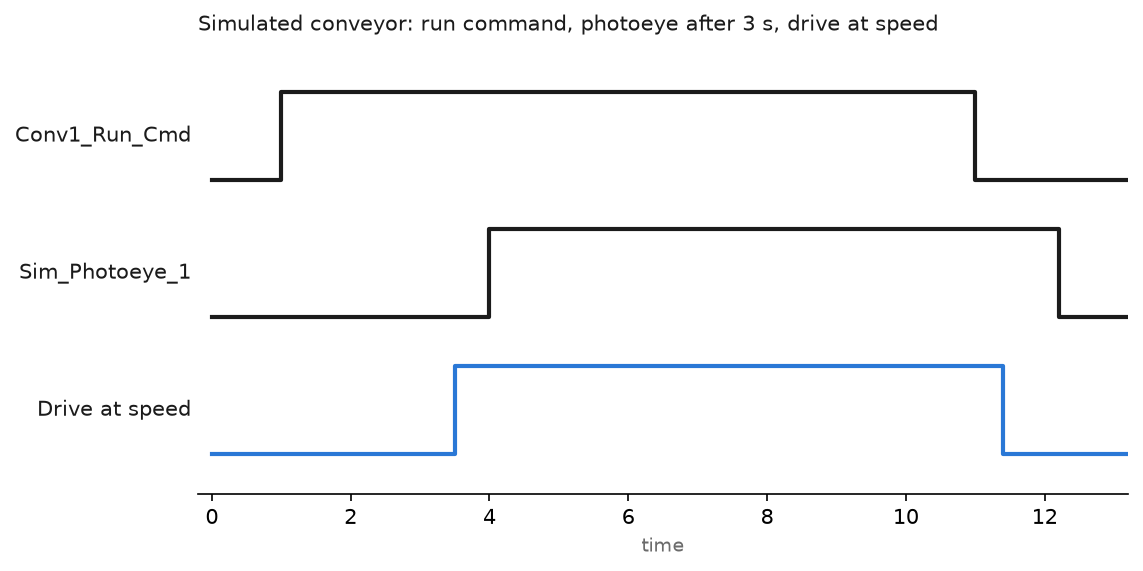
The emulator gives you a controller, not a machine. Nothing moves until you write the part that pretends to be the mechanics. Keep it in its own program so it can never be scheduled on the real controller.
(* Program: MachineSim, scheduled in SimTask only.        *)
(* Conveyor feeds a part to a photoeye 3 seconds after    *)
(* the run command, and clears it 1.2 s after the stop.   *)

TON_PartArrive.PRE := 3000;
TON_PartArrive.TimerEnable := Conv1_Run_Cmd;
TON_PartArrive();

TOF_PartClear.PRE := 1200;
TOF_PartClear.TimerEnable := TON_PartArrive.DN;
TOF_PartClear();

Sim_Photoeye_1 := TOF_PartClear.DN;

(* Drive feedback: speed ramps toward the reference at    *)
(* 1 Hz per 100 ms, so the at-speed logic is exercised.   *)
IF Sim_Drive_Fbk < Drive_Speed_Ref - 1.0 THEN
    Sim_Drive_Fbk := Sim_Drive_Fbk + 1.0;
ELSIF Sim_Drive_Fbk > Drive_Speed_Ref + 1.0 THEN
    Sim_Drive_Fbk := Sim_Drive_Fbk - 1.0;
END_IF;

(* Faults you want to rehearse, driven from the HMI       *)
IF HMI_Inject_Jam THEN
    Sim_Photoeye_1 := 1;
END_IF;
Two rules keep this safe. The sim program lives in a task that exists only in the emulator copy of the project, and every sim tag carries the Sim_ prefix so a search before release finds all of them. A colleague once merged a sim routine into the production project because the tag names looked like field tags. The machine ran beautifully with no parts on it.
Run the HMI against the emulator
In FactoryTalk View ME, edit the shortcut in Communications so it points at the emulator under AB_VBP-1 instead of the real controller, then use Application → Test Application. The runtime opens on the desktop and reads live tags from the emulator, which is enough to catch wrong tag names, missing security codes and buttons wired to the wrong bit.
On Site Edition the equivalent is a test display client against the emulator shortcut. The FactoryTalk Linx shortcut is the piece people forget to switch back, and it is covered in FactoryTalk View Site Edition.
WinCC Runtime simulation in TIA Portal does the same job against a PLCSIM Advanced instance, with the added benefit that both are on the same virtual network adapter.
The Siemens route with PLCSIM Advanced
- In TIA Portal, right-click the project name at the top of the project tree, choose Properties, open the Protection tab, and tick Support simulation during block compilation. Without it the download to a simulated PLC is refused.
- Start S7-PLCSIM Advanced, choose PLCSIM Virtual Eth. Adapter, type an instance name and an IP address on the same subnet as the project, then Start.
- In TIA Portal, download to the instance. The first download loads hardware configuration and blocks the same way a real download does.
- Open Monitor and force inputs, or drive the instance from the API if you are coupling it to a model.
The bundled PLCSIM that ships with STEP 7 Professional is fine for testing blocks and timers. PLCSIM Advanced is the one that gives you a real network interface, so OPC UA clients, a SCADA node and a second instance can all talk to it. If you are new to the environment, the layout is described in Siemens TIA Portal.
What simulation proves, and what it does not
| Area | Trust it? |
|---|---|
| Sequence and interlock logic | Yes, this is what emulation is for |
| Alarm text, HMI navigation, tag names | Yes, and it catches a lot |
| Recipe handling, unit conversions | Yes |
| Scan time and task overlaps | No, the emulator timing has nothing to do with a 1756-L83E |
| Motion profiles, cam tables | No, not on Emulate |
| Safety logic and safety signature | No, real hardware only |
| Drive parameters and ramp behaviour | Only with a model, and only approximately |
| Field wiring, polarity, grounding | Never |
The timing row is the one that bites. If your logic depends on how long a scan takes, the simulation will agree with you and the machine will not. Write the logic so it does not care, and check the reasoning in PLC scan time and cycle time.
Pre-travel checklist
- Every sequence step reached at least once, including the abort path from each step.
- Every alarm raised once, acknowledged, and cleared. Read the text on the HMI, not in the tag database.
- Power loss in the middle of the cycle, then restart. Watch what the sequencer does on first scan.
- Every HMI button pressed with the machine in the wrong state, to see what the interlock does.
- Manual mode exercised for each device, jog included.
- Recipe change on the fly, with a part in the machine.
- A written list of what was not tested, which goes in your pocket for the site.
Field notes
The emulator that was too fast. A palletiser handshake used a 50 ms pulse to tell the robot the layer was ready. In the emulator the pulse was always seen. On the real line the robot polled every 100 ms and missed it about one time in five. Pulses sized in scan counts are a habit worth losing.
A sim task that shipped. The SimTask was left unscheduled rather than removed, which is correct, but the sim program had also been copied into MainTask during a merge. Outputs looked right and nothing moved. Twenty minutes of confusion on a Saturday, avoided by searching for Sim_ before the final download.
PLCSIM Advanced and the firewall. The virtual Ethernet adapter came up, TIA Portal found the instance, and the OPC UA client on the same laptop could not connect. The Windows firewall was blocking the adapter because it was classified as a public network. Setting the adapter to a private profile fixed it in a click.
HMI shortcut left pointing at the emulator. The application was tested, zipped and sent to site. On the panel it showed all tags in error because the shortcut still targeted AB_VBP-1. Now the shortcut goes back to the real path as the last action before any runtime file is created.
Frequently asked questions
Is Logix Emulate included with Studio 5000?
No. It installs from the same media but carries its own activation. Check your FactoryTalk Activation Manager before you plan a week around it.
Can two emulated controllers exchange data?
Produced and consumed tags between two emulator instances on the same virtual backplane work in most versions. Messaging out to real devices does not.
How close is emulated scan time to the real controller?
Not close, and it varies with what else the laptop is doing. Use the emulator for logic, use a real controller for timing.
Do I need a mechanics model?
Not for logic testing. You need one when you are proving cycle time or collision avoidance, and that is where Emulate3D or NX MCD earn their licence cost.
Can I test a GuardLogix safety program this way?
Only the standard task. Safety logic needs the safety partner and a signature, so it belongs on the bench with real hardware.
Next step
When the logic is proven, the next stop is the download procedure on the real controller, which is the same sequence with a different path. It is written up in downloading a program to the Studio 5000 emulator and, for older platforms, in RSLogix Emulate.