The Import Configuration dialog offers three words: Rename, Overwrite, Use Existing. Behind Collision Details, the Property Compare tab says Revision 1.4 against Revision 2.1 and two different Edited Dates. The Project References tab says the existing Valve_Ctrl is used in 38 places.
Pick Overwrite and all 38 calls are now calling a different instruction.
The part that decides whether that is fine or a bad afternoon is how the arguments get reattached, and 1756-PM010N is specific about it: the import and paste processes compare only parameter names to associate arguments with parameters, so if two different parameters have the same name but different operational definitions, importing or pasting may impact the behaviour of the instruction. Rename a parameter between revisions and its argument goes to whatever else now holds that name. Nothing highlights, nothing warns, and the project verifies.
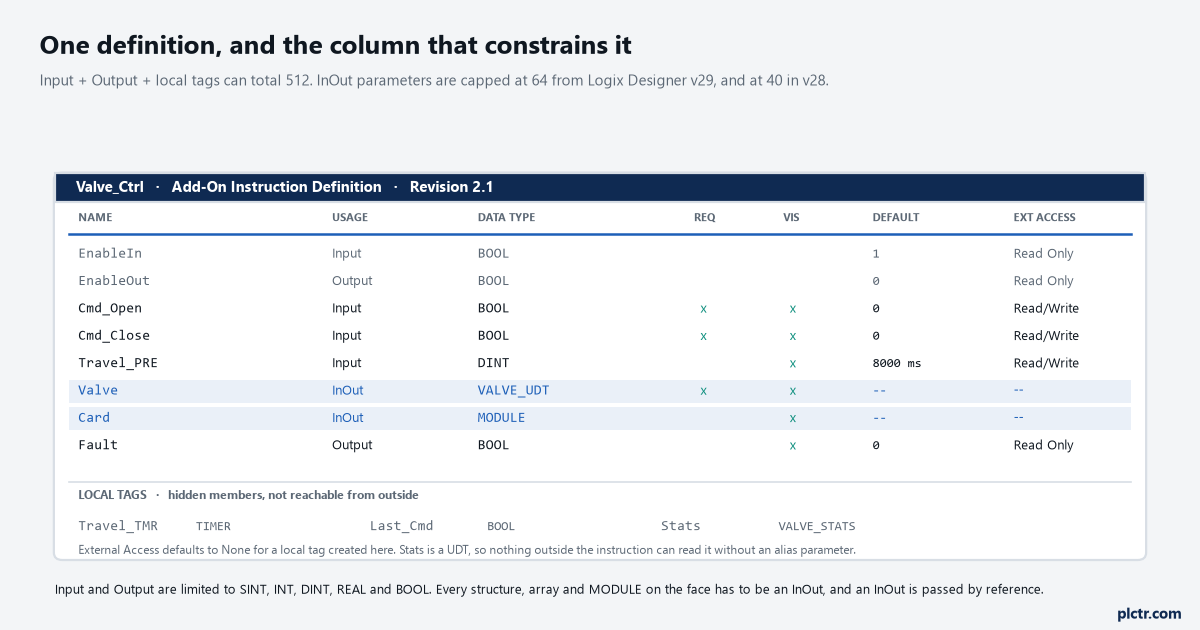
Usage is the column that constrains everything else. Input and Output are restricted to five atomic types; InOut is the only one that can take a UDT, an array or a MODULE.
The three usages, and the one that can hold a structure
Input, Output, InOut, and they are not three flavours of the same thing.
An Input parameter is passed by value into the instruction and must be SINT, INT, DINT, REAL or BOOL. An Output parameter is passed by value out and carries the same five-type restriction. An InOut parameter is passed by reference and can be any data type at all, including structures and arrays. That restriction is the single biggest shaper of an AOI’s face: the moment your instruction needs a UDT — a valve configuration, a recipe step, a device status block — that has to be an InOut, and an InOut behaves differently in a way that matters. Because it is passed by reference, the logic reads and writes the caller’s tag memory directly, which means the value can change from an external source while the instruction is executing. An HMI write landing mid-instruction on an InOut is visible to the second half of the routine and not the first. Input and Output parameters cannot do that, because the copy happens once on the way in and once on the way out.
Faster, too, and the manual says so plainly: InOut parameters are passed by reference, which is faster than copying data for many types.
There is a fourth thing that looks like a parameter type and is a special case of InOut. A module reference parameter is an InOut of the MODULE data type that points at the Module Object of a real piece of hardware, which lets an AOI read EntryStatus, FaultCode, LEDStatus, Mode and Path for the module it was handed. It comes with four restrictions worth memorising before you design around it: it can only be an InOut of type MODULE, it cannot be used in safety programs or safety Add-On Instructions, it must be program or Add-On Instruction scope rather than controller scope, and you cannot create a module reference tag at all — the only way to reference a module is through that parameter.
Local tags are the actual reason to build an AOI
A subroutine’s working data sits in program or controller scope where anything can reach it. An AOI’s does not.
Local tags are added as hidden members of the instruction-defined data type, and 1756-PM010N states the consequence directly: local tags are not accessible programmatically through the instance tag. So a UDT, an array or a nested AOI used as a local tag is not available outside the definition at all — no HMI binding, no cross-reference from a routine, no watch-window path. That is encapsulation, it is the whole difference between an AOI and a JSR, and it is also the thing people fight until they learn the escape hatch. The escape hatch is an alias parameter: tick Alias For on the Parameters tab, point it at a local tag or one of its members, and that one value becomes visible outside while the rest stays hidden. One more default catches people the first week: a local tag created from the Local Tags tab gets External Access of None, which is correct and also means an HMI that binds to it gets nothing until somebody changes it in the Tag Editor.
Two data types are not allowed for a local tag at all.
One is any type used only for InOut parameters, which means MODULE. The instruction-defined data type of the AOI itself is the other — an instruction cannot contain an instance of itself. And the Data Type field is simply unavailable for the members of a local tag, because the members come from the structure you already chose.
The limits that decide the shape before you start
Four numbers and one list, and all five are easier to read now than to discover at 200 rungs in.
Input parameters plus Output parameters plus local tags can total 512. InOut parameters are limited to 64 in Logix Designer version 29 and later and to 40 in version 28, with versions 27 and earlier setting no limit at all — and the manual adds that the .@Min and .@Max limit extended properties should not be defined on an InOut parameter or used in AOI definition logic, because the logic will not verify. Nesting goes 16 levels deep with Rockwell recommending you stop at eight. The maximum data instance, counting Inputs, Outputs and local tags, is two megabytes, and the current size is displayed at the bottom of the Parameters and Local Tags tab while you work. Then the list: an AOI cannot call a routine through a JSR at all, so complex functionality that would have been three routines has to become nested instructions instead.
Some instructions are simply not available inside one.
BRK, EOT, EVENT, FOR, IOT, JSR, JXR, MAOC, PATT, PCLF, PCMD, PDET, POVR, RET, SBR, SFP and SFR are the list. EVENT being on it is worth noticing if your plan was an AOI that raises an event task — the trigger has to sit in the calling routine. And four families are available but only through an InOut: ALMA, ALMD, MSG and all the motion instructions have to have their data instances passed in as InOut parameters, which means an AOI that wraps a message or an alarm puts that structure on the instruction face whether you wanted it there or not.
GSV works inside an AOI. SSV against AddOnInstructionDefinition does not, and will not verify.
An instruction that wants to read its own revision at runtime can therefore do it, and cannot change it.
The classes that represent programming components — Task, Program, Routine and AddOnInstructionDefinition — also support only THIS as the Instance Name inside an AOI, so an instruction cannot go looking at a task other than the one it happens to be running in.
EnableIn, and the one-shot that fires once and never again
This is the bug that gets written into a first AOI almost every time.
Some ladder instructions retrigger only when rung-condition-in goes from false to true — ONS, MSG, PXRQ, SRT and several of the ASCII and motion instructions are the manual’s own examples. Inside an Add-On Instruction, those instructions never see the transition to false, because when EnableIn is false the AOI’s logic routine does not execute at all. The one-shot’s storage bit is therefore never cleared, and the second time the AOI is called with a true rung it does nothing. The symptom is a MSG that sends once after a download and never again, and the first three hours of chasing it go into the message path. The mechanism the manual offers is an EnableInFalse routine — a second routine that runs when the rung is false, doing whatever conditioning the transitional instruction needs.
It does not work from structured text, and this is the sentence to remember.
EnableIn is always true for calls in structured text, so an AOI called from an ST routine never runs its EnableInFalse routine, no matter how carefully you wrote it. If the same instruction is going to be called from ladder in one program and ST in another, do not rely on that mechanism at all — carry the edge detection in an Input parameter that the caller provides, or hold the previous state in a local tag and compare.
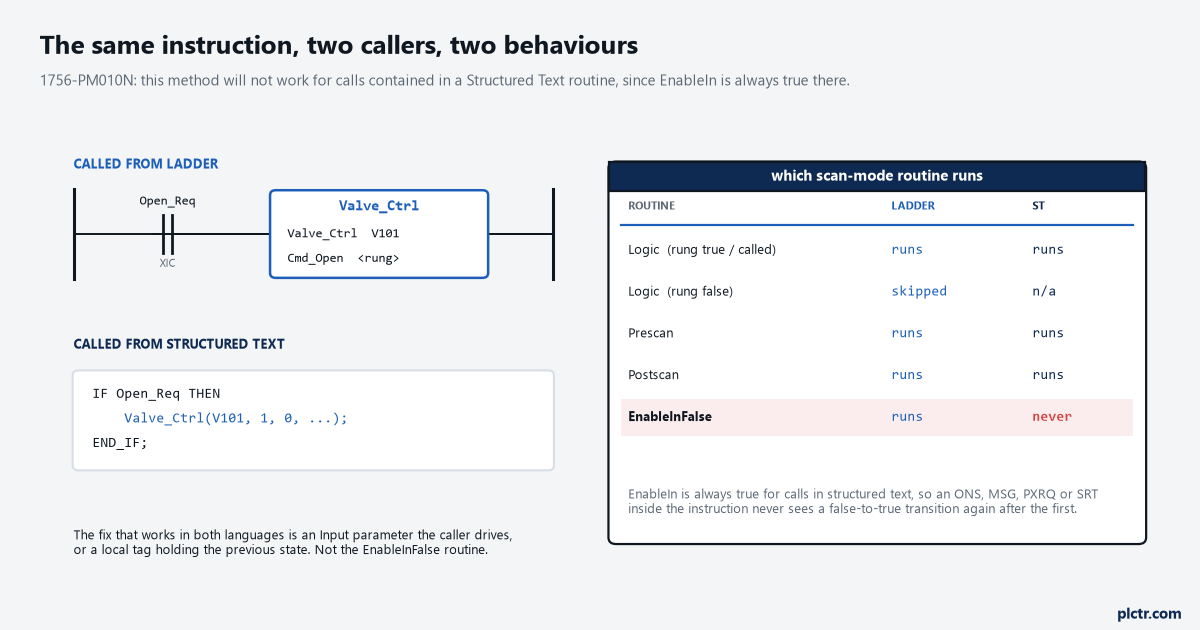
Prescan and Postscan routines run in both cases. EnableInFalse runs only for the ladder and function block calls, which is why an instruction that depends on it behaves differently depending on who called it.
The revision, and what happens when a second one arrives
Here is the part that actually costs people days, and it starts with one sentence from the General tab of the definition: the revision is not automatically managed by the software. You are responsible for defining how it is used and when it is updated.
Nothing enforces it. Nothing increments it. Two AOIs with the same name and the same revision number can contain completely different logic, and Logix Designer will not say a word — the revision is documentation, in exactly the same sense as the Vendor field and the Revision Note. So when an L5X arrives from an OEM and it collides with the Valve_Ctrl already in your project, the Property Compare tab in Collision Details is comparing what the manual calls extended properties for each instruction definition — description, revision, edited date, software revision — and nothing else. It does not diff the logic. It does not diff the parameters. The manual’s own advice underneath that dialog is the only mitigation available: for effective revision control, enter a detailed revision note. You are being asked to write the changelog because the software is not going to derive one.
Three choices in the Operation list, and they are not equal.
Use Existing keeps what the project already has and is the safe default when you are importing a program that happens to reference an AOI you already own. Rename gives the incoming definition a new name, which works only if it has not been sealed with an instruction signature — and to rename a source-protected AOI you need the source key or the required licence. Overwrite replaces the definition and is the one to think about, because the replacement applies everywhere the instruction is used, which is what Project References is telling you when it says 38. Updating an AOI to a newer revision this way requires you to be offline; there is no online path for it.
Then the argument reattachment, which is the actual trap.
There are two different mechanisms in this software for keeping arguments attached to parameters, and they are not equally clever. When you edit a definition in place — adding, deleting, renaming, reordering or changing the usage of a parameter — Logix Designer tracks the changes from the original to the final version and updates the arguments on every call, showing you a confirmation dialog with an asterisk against each pending change, a ? in the argument field of each newly added parameter, and an Unknown parameter created for any argument whose parameter was deleted. When you import or paste, none of that tracking exists: the two definitions are compared by parameter name alone. So an OEM who renamed Cmd_Open to OpenCmd between revisions hands you a file whose Overwrite leaves 38 calls with an argument attached to nothing and a new parameter with no argument, and an OEM who kept the name Cmd_Open but changed it from an Input to an InOut hands you 38 calls that verify and behave differently.
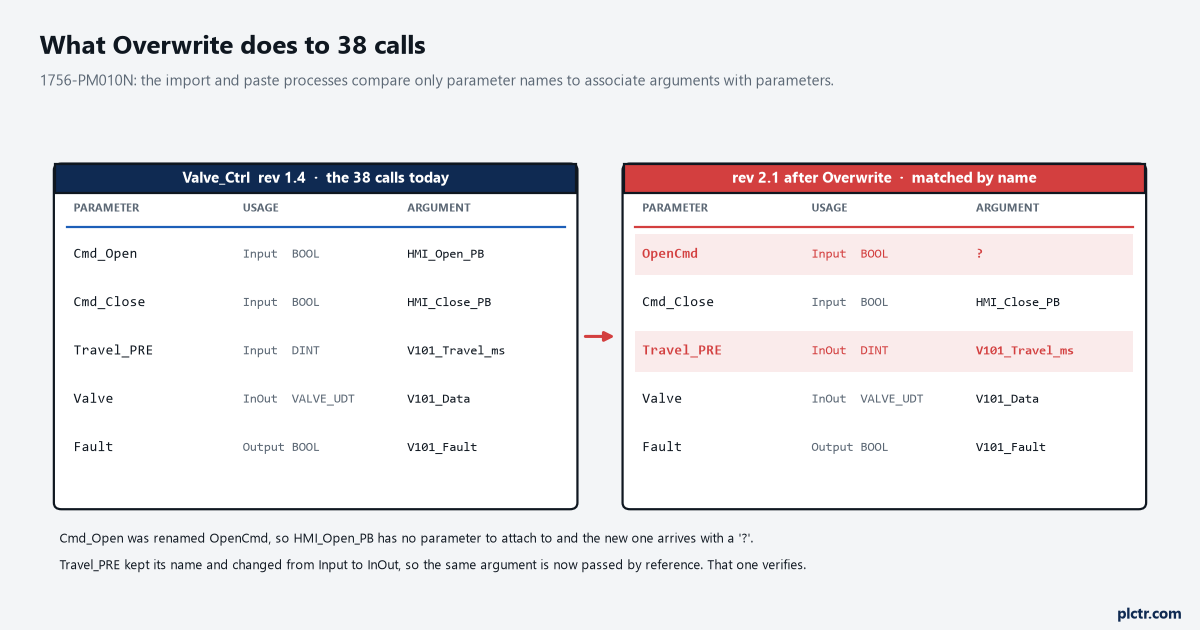
Only the two shaded rows moved. The project verifies afterwards, because both arguments are still valid for the parameters they ended up on.
The manual’s instruction after an Overwrite is one line and it is worth following literally: check each routine where your Add-On Instruction is used to make sure that your existing program code will work correctly with the new version of the instruction. Thirty-eight calls is a morning. A tag cross-reference is the tool for doing it, and Project References is the list to work from. There is a walk-through of the mechanics of the import itself in importing an Add-On Instruction definition.
Source protection has to come before the signature
Two protections, in a required order, and getting the order wrong means starting again.
Source protection limits access to the AOI’s internal logic and local tags, either with a source key or with a licence, and Execution Protection extends the licence version so that a component only runs on a controller carrying a specific execution licence. An instruction signature is a different thing: a 32-bit value that seals the definition and every instance of it, generated offline, that exists to prove the instruction has not been modified. The rule connecting them is a tip in the manual that reads like an afterthought and is not: apply Source Key protection before generating an instruction signature, because you need the source key to create a signature history entry afterwards. Seal first and you have an instruction you cannot source-protect without breaking the seal. There is a related ordering rule for documentation, too — translated project documentation has to be imported before the signature is generated.
You cannot modify the source protection settings of a sealed instruction at all.
So the order is source key first, translated documentation second, signature last, with no way back.
Four more facts about signatures are worth carrying. Removing an instruction signature from an AOI that also has a safety instruction signature deletes the safety signature as well. The signature history holds up to six entries and a seventh silently deletes the oldest. Changes to a referenced UDT or a referenced nested AOI — adding, deleting or moving members, or changing a name, data type or display style — can invalidate the signature of the instruction that references them, which is the failure that turns up during a verify weeks after somebody tidied a UDT. And the signature is not guaranteed to be maintained when migrating between major revisions of the Logix Designer application, so a signature is evidence about this version of the software, not a permanent fingerprint.
The nastiest interaction of source protection and editing is a single ATTENTION box.
Source-protected routines and source-protected Add-On Instructions that use the AOI you are editing are not automatically updated if the source key is unavailable. The manual’s own words for what follows: the Add-On Instruction or routine may still verify, but the resulting operation may not be as intended. So a project containing one protected library you do not hold the key for is a project where the automatic argument tracking silently stops at that boundary, and the only defence is knowing where your instructions are used before you change them. For safety AOIs the rules tighten further — you cannot import one into a standard task, into a safety-locked project, into a project with a safety task signature, or while online at all — and safety Add-On Instructions covers that side.
Before you click OK
Open Collision Details and read the Project References tab first, not the Property Compare tab. The revision numbers tell you almost nothing, because nothing generated them; the reference list tells you how much work you have just agreed to. If it says three, overwrite and check three. If it says thirty-eight, take a copy of the project first.
Then compare the two parameter lists by hand, by name and by usage, before the import rather than after. That is the comparison the software does not make and the one that changes behaviour. If they match, Overwrite is safe; if a name has moved or an Input has become an InOut, the safe move is Rename, put both instructions in the project, and migrate the calls deliberately. The basics of building one from scratch are in Add-On Instructions and creating one in Studio 5000, and the UDTs that end up on the InOut parameters are worth designing first, which is what a UDT is for.