A spare CPU firmware mismatch looks like this: a new 1756-L83E ships at firmware revision 1.xxx, and a project saved from Logix Designer v33 will not download to it until the controller is at some 33.xxx. Those two facts sit on the same page of the ControlLogix 5580 user manual, and between them they are the entire Rockwell rule: the major revision of the firmware equals the version of the software, exactly, and nothing else on the controller’s label is checked.
On an S7-1500 the rule runs the other way. The CPU’s firmware has to be at least the version configured in the project, the article number has to be one the project’s TIA Portal version can name, and the hardware functional status printed next to them is never a reason a load is refused. Two hard checks on each side. The rest of this page is what those checks mean when the spare in your hand does not pass them, and what the memory card does before you get a chance to.
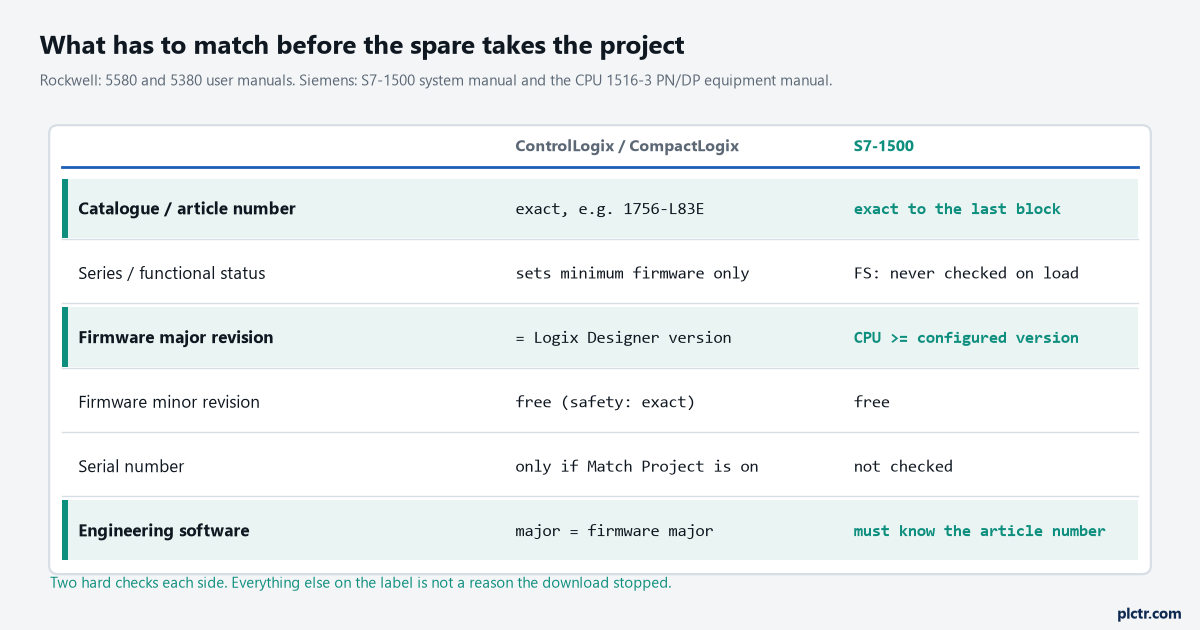
Catalogue number and major revision on the Rockwell side; article number and a firmware floor on the Siemens side. Series, FS and serial number are on the label, and none of them is why the download stopped.
What a spare CPU firmware mismatch actually compares
Catalogue number first. The project was created for one controller type, and a 1756-L72 project does not go into a 1756-L83E without changing the controller type in the project, which is an offline operation with its own consequences and its own appendix in the manual. Get the catalogue number on the spare to agree with the project before thinking about firmware at all. Then the major revision. The 5580 manual states it in one sentence: the controller firmware and the Logix Designer application must be of the same major revision level, and the example it gives is firmware 38.xxx with Logix Designer version 38. The 5380 manual says the same with 31 and 31. That is a hard equality, not a floor. A spare at 32.011 does not take a v33 project, and a spare at 34.011 does not either. The minor revision is free. 33.011 and 33.012 both take a v33 project, and the only place the minor number is enforced is a safety controller with a safety signature, where the manual says the firmware minor revision on the controller has to exactly match the offline project or the signature is deleted and the safety system requires revalidation.
A hard equality on the major number, and nothing on the minor.
Series is a floor, and only on the older controllers. The 5570 manual carries a table: a 1756-L61 series A runs 12.x or later, series B needs 13.40 or later; a 1756-L64 series B needs 16 or later; a 1756-L71 needs 20 or later and the L72 through L75 need 19 or later. A series B spare of an older catalogue number cannot be flashed down to the firmware a series A was running, and that is the one way series enters the conversation. Serial number is checked only if you asked for it. Match Project to Controller, on the Advanced tab of Controller Properties, makes Logix Designer compare the serial number in the project to the connected controller, and on a spare they will never agree. The dialog offers a checkbox to update the project serial number to match; tick it, and the project remembers the new controller.
So what stops you is one number, and the dialog names it.
It reads: unable to download to the controller, the major revision of the offline project and the controller’s firmware are not compatible, and under it the manual’s instruction is short. Choose Update Firmware, choose the required revision, click Update, click Yes.
Four clicks, if the revision is in the list. That is the if.
Why the Update button is greyed out, or missing the revision you need
Update Firmware during a download only works if the firmware for that revision is already on the laptop. The 5580 manual says it plainly: to update the firmware of the controller, first install a firmware update kit. The kit for the initial release of a major revision comes with the Logix Designer installation, and the same manual warns that the firmware packaged with the software installation is the initial release of the controller firmware and that later revisions to address anomalies are released during the life of a product. The PCDC has them. ControlFLASH Plus, from version 2.00.00 up, browses the PCDC from inside the tool, downloads the kit, and puts it in the monitored folder — the default one is under Public Documents, Rockwell Automation, Firmware Kits — and a kit that is not a DMK has to be run as an installer before ControlFLASH Plus will list it.
Which is where the afternoon usually goes. The laptop has Logix Designer v33 and the v33.011 kit that came with it, the plant standardised on 33.014 after a firmware notice two years ago, and the spare needs to end up at 33.014 to match the rest of the line. Nobody can find 33.014 in the list because it was never downloaded to this laptop. That is a download problem, not a controller problem, and reinstalling Studio 5000 — the first thing suggested every time — does not put a kit on the machine that the installation never contained.
Two conditions on the controller side, both from the manual: Program or Remote Program mode, and every major recoverable fault cleared first.
The SD card gets there first
A spare 5580 is not a blank controller if there is a card in it, and the memory card chapter of the 5580 manual is the one people skip.
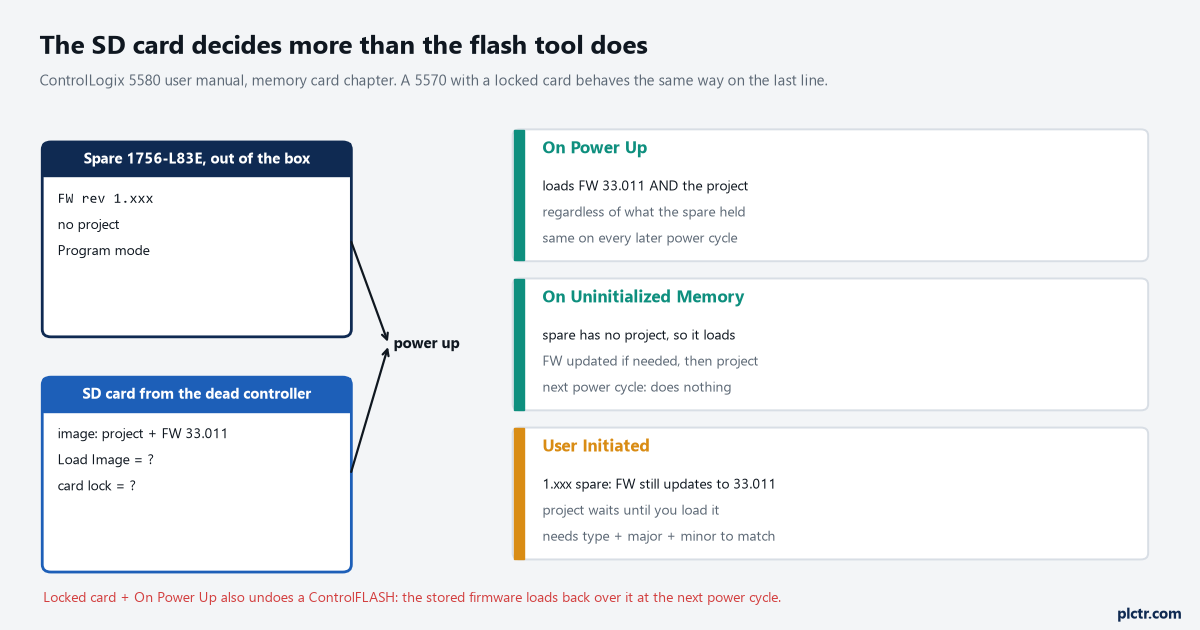
Take the card out of the dead controller, put it in the spare, power up. With Load Image set to On Power Up the spare comes up at the card’s firmware with the card’s project and there was never a mismatch to fix.
Three sentences from that chapter decide what happens, and none of them involves a laptop. With Load Image set to On Power Up, the controller loads the stored project and firmware at every powerup regardless of the firmware or application project on the controller. With an out-of-box controller at firmware 1.x and a card carrying an image, at powerup the controller automatically updates the firmware up to the version of firmware that is stored on the memory card, regardless of the Load Image setting in the image. And with User Initiated, you can only start a load if the controller type and the major and minor revisions of the project in nonvolatile memory match the controller — the minor as well, which is stricter than the download.
Used deliberately, this is the fastest spare swap there is. Store the image to the card on the running controller with On Power Up, keep the card with the panel, and a swap is a card move and a power cycle, with no laptop, no kit, no PCDC login. The trade is stated in the same table: at every power cycle you lose any online changes, tag values and network schedule that were not stored to the card, so the card has to be re-stored after every accepted edit or the next power dip takes the plant back to the day the image was made. How that fits with the rest of a backup routine is in backing up a ControlLogix properly. Used by accident, the same mechanism explains the strangest symptom in this whole topic. The 5570 manual puts it in the ControlFLASH procedure: if the SD card is locked and Load Image is set to On Power Up, the controller firmware is not updated as a result of these steps; the previously stored firmware and project are loaded instead. You flash a 1756-L72 from 20.011 to 20.019, it completes, you cycle power, and it is back at 20.011 with last year’s project. Nobody flashed it back.
The card did, and it will do it again at the next power cycle.
The S7-1500 side: the article number is the check, not the FS
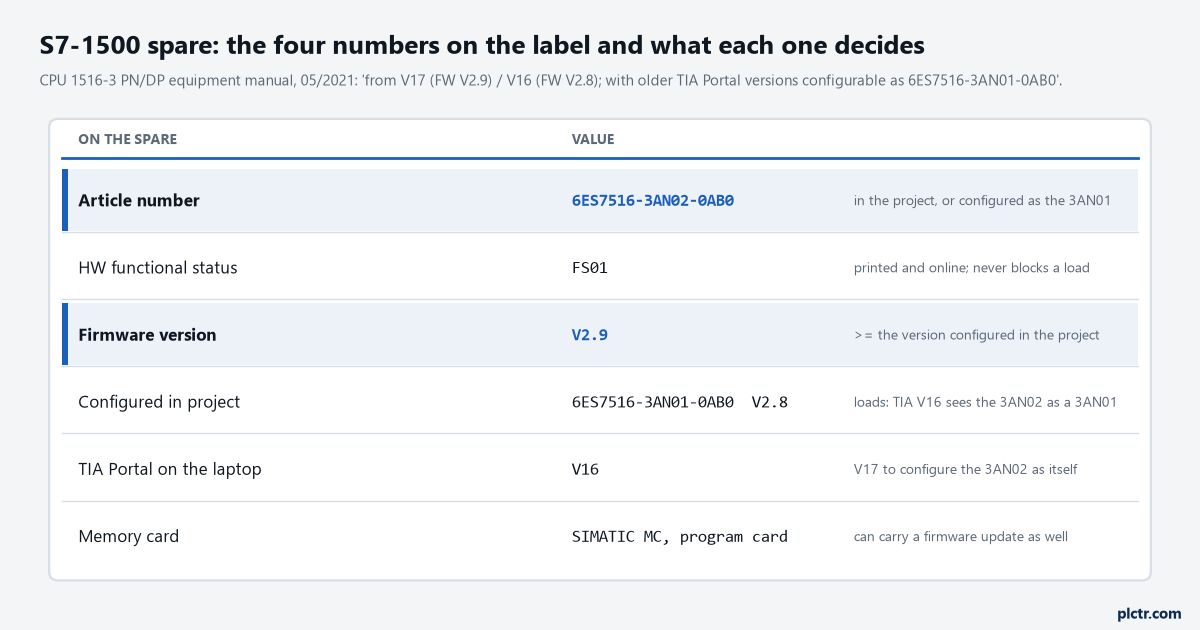
The one line to take from the CPU 1516-3 PN/DP equipment manual: a TIA Portal older than V17 configures this spare as the 6ES7516-3AN01-0AB0, and the load runs.
Read the side of the CPU before you open TIA Portal. Four things are printed there, and the equipment manual for a CPU 1516-3 PN/DP lists the same four in its technical data: article number 6ES7516-3AN02-0AB0, HW functional status FS01, firmware version V2.9, and further down the TIA Portal versions that can configure it. The article number matters to the last block.
The FS does not, and this is the number people stare at longest.
It is reported online and printed on the label, and no load is refused because of it.
Firmware works as a floor. The version configured in the project may not be higher than the firmware in the CPU, and the message TIA gives when it is, along with the Change device version procedure that fixes it, is walked through for the 1200 in S7-1200 firmware mismatch: why the download stops and behaves the same on a 1500. What the equipment manual adds is the case people assume is fatal and is not. Its technical data line for engineering reads: STEP 7 TIA Portal from version V17 (FW V2.9) / V16 (FW V2.8) or higher; with older TIA Portal versions configurable as 6ES7516-3AN01-0AB0. A spare that is newer than the project’s TIA Portal loads anyway, as its predecessor article number, at the predecessor’s firmware ceiling. You give up what V2.9 added, which for that CPU was mostly secure PG/HMI communication, and the machine runs tonight.
Newer spare, older laptop: it loads, as the older part.
Going the other way, a spare whose firmware is below the project’s, has three routes in the system manual and they are worth knowing apart. Online through STEP 7 under Online and diagnostics, Functions, Firmware update, where the tool lists every module the chosen file fits before you press Run update. Through the web server of the CPU. Or through a SIMATIC memory card prepared as a firmware update card from the Card Reader/USB memory folder in the project tree, which is the route that needs no engineering connection at all: insert the card, the CPU goes to STOP – FW UPDATE on its display, shows the progress and a result screen, and you remove the card. If the same card is then going to be the program card, the manual says to delete the update files from it by hand first. And one line that matters to a plant with retentive data it cannot lose: the retentive data is retained after the execution of the firmware update.
An interrupted update needs the module pulled and re-inserted before it can be started again, per the same chapter. That is the only fault in this procedure that looks like a dead CPU and is not.
What to check next
Before the spare leaves stores, read two things off it and write them on the bag: the catalogue or article number to the last character, and the firmware it is actually at, which on a 5580 means going online with RSLinx or the controller’s web page and on a 1500 means the display or the label. Then put the laptop’s software version and the project’s configured version next to them. If the Logix major numbers differ, get the kit for the project’s exact revision onto the laptop before you walk to the panel, and check whether there is a card in the spare and what its Load Image is set to before you power it up. If the Siemens article number is newer than the laptop’s TIA Portal knows, the equipment manual for that CPU tells you which older article number it can be configured as. The broader mechanics of flashing a controller are in PLC controller firmware upgrade, and if the reason for the spare was a power event, what a controller keeps through one is its own question in retentive memory: what survives a power cycle on Logix and on S7.