Press Start search in the Extended download to device dialog, wait the twenty seconds, and the search ends with no accessible devices in the list, while the LINK LED on the CPU port is steady green and ipconfig says the laptop is holding 192.168.0.200 on a 255.255.255.0 mask. The dropdown two rows above that empty list is the reason far more often than the network is, and on a 6ES7214-1AG40-0XB0 straight out of the box there is a second reason that is not a fault at all.
The PG/PC interface field is asking which adapter in your laptop the search goes out of, and a working laptop has five or six candidates: the wired NIC, a wireless one, a VPN tunnel adapter, whatever a virtual machine installed, and a docking station that presents its own. STEP 7 remembers whichever was chosen last, which was not necessarily by you and not necessarily on this job.
So set the two fields, tick the box, and search again before touching anything else.
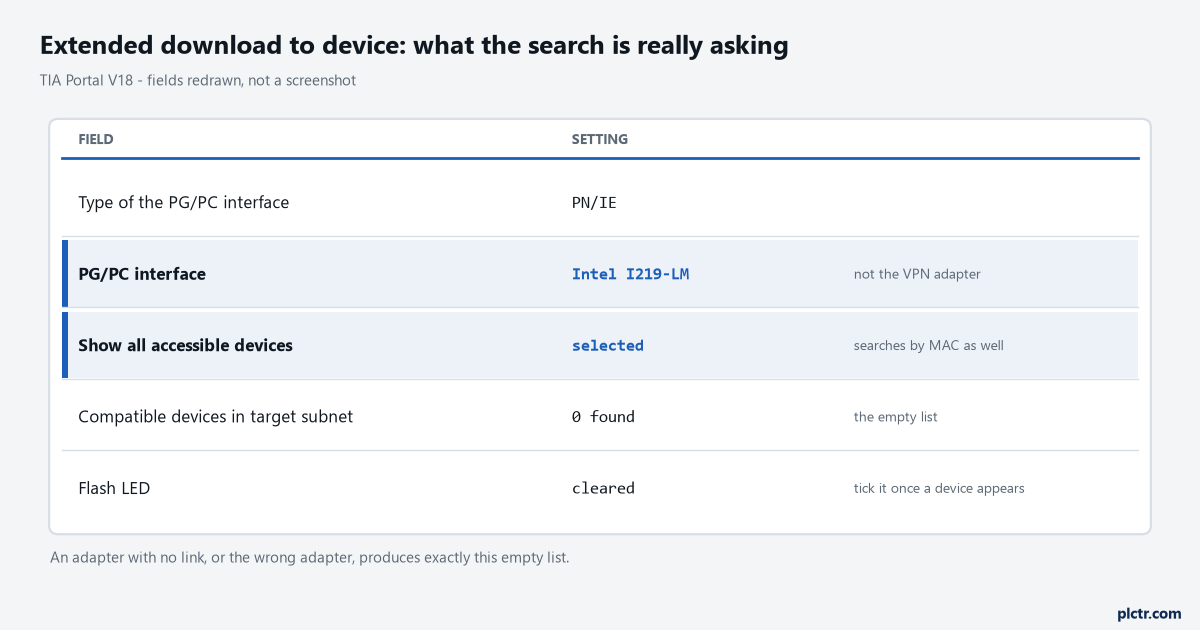
Our own drawing of the fields, not a screenshot. Type of the PG/PC interface is PN/IE for an Ethernet CPU; the row under it is the adapter that actually carries the search.
Written against STEP 7 Professional V18 with an S7-1200 on firmware V4.6, and checked against the S7-1500 system manual where the behaviour is common to both. Dialogs shift between TIA Portal versions, so take the field names as the shape of the thing rather than as a pixel map.
What the two dropdowns mean
Type of the PG/PC interface is the protocol family. For a CPU with a PROFINET port that is PN/IE, and the only reason to change it is if you are reaching the controller over PROFIBUS or through a CP, which on a first commissioning you almost certainly are not.
PG/PC interface is the physical adapter. This is the one that goes wrong.
The S7-1200 system manual makes the same point about going online generally: the first time you connect to a CPU you have to pick the type of PG/PC interface and then the specific PG/PC interface before STEP 7 will look for anything. The download dialog is the same question asked at a worse moment.
Then there is the checkbox. With Show all accessible devices cleared, the search looks for devices matching the configured address. With it ticked, the dialog shows all accessible and available devices with their assigned MAC or IP addresses, which is what you want on a CPU that has never been given an address, because a factory S7-1200 has one identity only and it is the MAC.
Why there are no accessible devices in the list
Six causes, in the order they are actually worth checking.
- Wrong adapter. Covered above, and it is the first thing to fix because it costs nothing.
- No link. The LINK RX/TX LED on the CPU port tells you about the CPU end. Your laptop end is
ipconfigin a terminal: an adapter showing “Media disconnected” is not going to find anything, and neither is one holding a 169.254 address, which means it asked for DHCP and nobody answered. - The checkbox is cleared and the CPU does not have the configured address yet, so there is nothing for the search to match.
- A firewall or a security suite on the laptop. DCP is not IP traffic and some endpoint software drops it silently.
- Something between you and the CPU that does not pass the broadcast. A managed switch with a VLAN you are not on, or a wireless bridge.
- The CPU is not running. Missing or insufficient supply and every LED is off. On an S7-1500 there is a further condition that catches people moving over from an S7-1200, and the manual is unambiguous about it: a SIMATIC memory card is absolutely required in order to operate the CPU, and a program loaded over an online connection is written to the load memory on that card. No card, no CPU to find.
The manual’s own wording for cause 5 and 6, once you have ruled out the laptop, is blunt and correct: if the required network device is not in this list, communications to that device have been interrupted for some reason, and the device and network have to be investigated for hardware or configuration errors.
Why a CPU with no IP address still shows up
This is the part that seems contradictory until you know the mechanism, and knowing it saves an hour.
PROFINET discovery does not run on IP.
It runs on DCP, the Discovery and Configuration Protocol, which the S7-1200 system manual lists in its protocol table as a link-layer protocol: Ethernet II and IEEE 802.1Q, Ethertype 0x8892, sent to the multicast MAC address 01-0E-CF-xx-xx-xx, with no port number because there is no transport layer involved. Its stated job is to discover devices and provide basic settings. That is why an address-less CPU appears in Accessible devices, listed by MAC, and why you can then push an address into it.
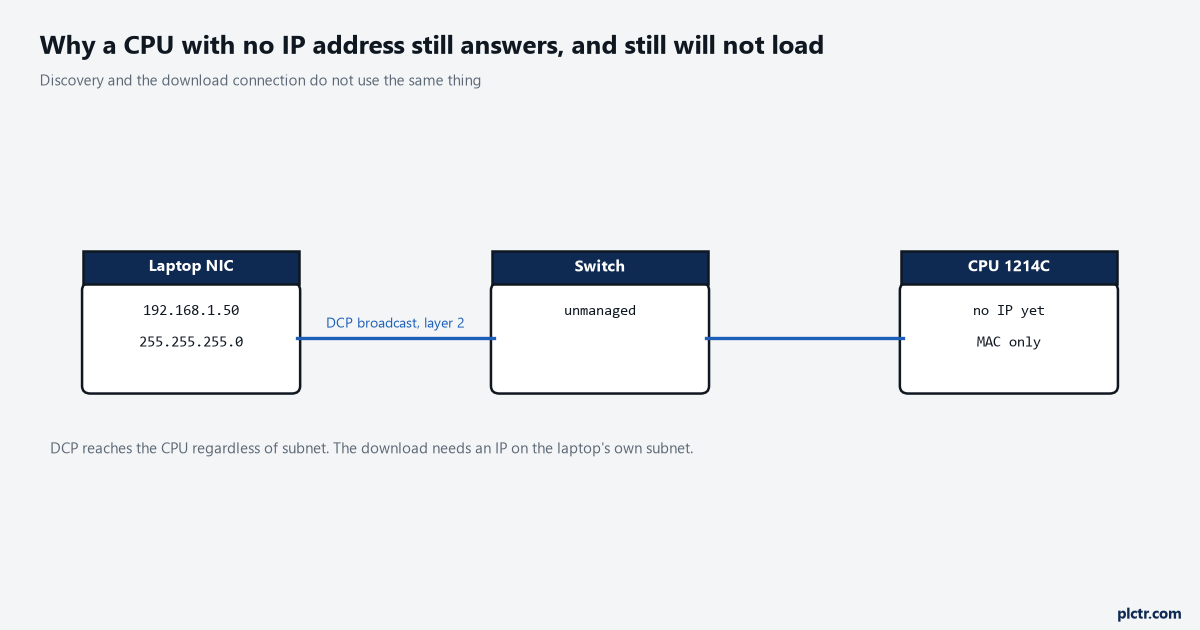
Discovery reaches the CPU whatever the subnets are. The download connection does not, and that difference produces the case where the device is visible but unreachable.
Which sets up the next failure precisely: the device appears, you double-click it, and the connection fails anyway.
The laptop and the CPU on different subnets
The S7-1200 manual states this requirement in a note, and it is worth reading twice.
The network interface card and the CPU must be on the same subnet to allow STEP 7 to find and communicate with the CPU. Different subnets need a router between them, and on a bench or in a panel there is no router, so this is not a thing you can configure your way around at the CPU end alone.
Fix it from whichever end is easier.
Change the laptop, if the CPU already has an address you want to keep.
Network and Sharing Center, adapter properties, IPv4, Use the following IP address, same first three octets as the CPU, mask 255.255.255.0, default gateway blank. The manual’s worked example is a CPU on 192.168.0.1 and the programming device on 192.168.0.200. You can check what the programming device currently holds from inside TIA Portal as well: Online access in the project tree, right-click the network, Properties, expand Configurations, select Industrial Ethernet, and the MAC and IP of the adapter are there.
Change the CPU, if it has no address yet or nobody cares what it is.
Online access, expand your adapter, double-click Update accessible devices. A device listed by MAC rather than IP has no address assigned. Double-click Online & diagnostics under it, go to Functions, Assign IP address, type the address, press the Assign IP address button. Double-click Update accessible devices again and the new address should be showing.
Before you trust either of those, flash the LED.
It is a checkbox in the device list of the download dialog, and a function in most online dialogs.
It settles the question of whether the device you are about to write an address into is the CPU in front of you or one in the next panel. The S7-1500 system manual describes what happens: click Flash LED and the RUN/STOP, ERROR and MAINT LEDs flash on the selected station until you stop the test. Two CPUs of the same type on one segment is a normal situation and a wrongly assigned address on a running machine is a bad afternoon.
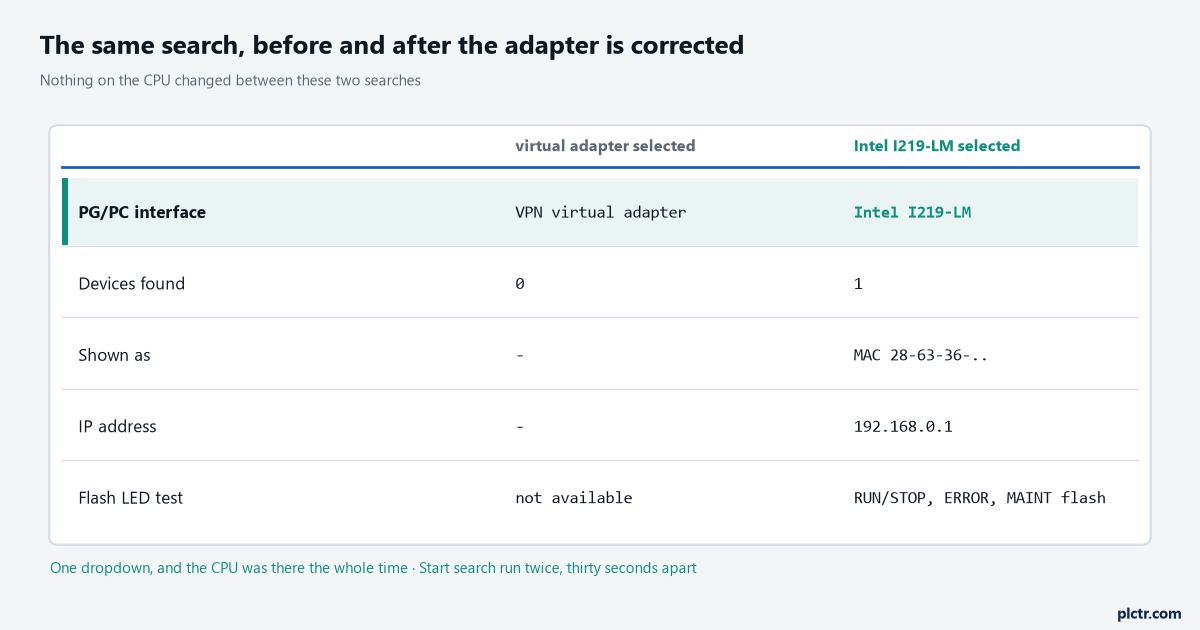
The only thing that changed between these two searches was the dropdown. The CPU did not move, and neither did the cable.
It downloaded, and it will not go to RUN
Different problem, same session, so here it is.
First, read the Load preview dialog rather than clicking through it.
If the CPU you are connected to differs from the one configured, STEP 7 puts the warning “Differences between configured and target modules (online)” in front of you with the article numbers and firmware versions listed, and makes you choose No action or Accept all. A load into a larger CPU is allowed, a CPU 1211C DC/DC/DC to a CPU 1215C DC/DC/DC for instance, because the I/O is compatible and the memory is sufficient. A load into a CPU with less work memory, or with different I/O, or with older firmware than the project is configured for, is refused outright and the Load preview shows an error instead. The firmware case has its own page, because it is the one that stops a job most often and the fix is not the obvious one.
Then check the startup parameters in the device configuration, under Startup.
Startup after POWER ON has three settings, and the default is not the one you want on a machine.
No restart means the CPU stays in STOP after every power cycle. Warm restart into RUN is what the manual tells you to configure on CPUs intended to run independently of a STEP 7 connection. The third option returns the CPU to whatever mode it was in before the power went, which sounds clever and means a CPU that was in STOP when the supply dropped comes back in STOP.
Comparison preset to actual configuration decides what happens when the real modules do not match the configured ones.
Startup of the CPU only if compatible holds the CPU in STOP until they do, where compatible means each module matches the configured one in input and output count and in electrical and functional properties, and may be more capable but never less. Startup of the CPU even if mismatch lets it run anyway. If somebody pulled a signal module and did not tell you, this setting is the difference between a CPU in STOP and a CPU running with a missing card.
Configuration time is the third of the three, default 60000 ms, and it is the window the central and distributed I/O get to come up. Past that window the CPU goes to RUN without them, which is a sentence worth reading twice if your station has an ET 200SP hanging off it.
On an S7-1500 add one more.
The CPU goes to RUN only if the mode selection is not holding it. On a 6ES7516-3AN02-0AB0 that is the operating mode buttons rather than a switch, and the manual is explicit that when STOP is active you cannot switch the CPU to RUN from the TIA Portal or the display. Green LED, everything loaded, and the CPU sits there because somebody pressed STOP.
When the download itself fails rather than the startup, the reason is written down in two places: the Info tab of the Inspector Window, and the diagnostics buffer.
Read both before changing anything. The S7-1500 area length error is a good example of a diagnostics buffer entry that names its own cause once you know how to read it.
Where to go next
Get the CPU found, addressed and running, then do the boring thing that saves you later: note the MAC, the IP, the device name and the firmware version somewhere that is not your laptop. The catalogue entry and the firmware version you picked when the project was created are half of every download problem you will have on this station, and the other half is which adapter the search went out of.
If the next thing you load is a change to a data block rather than a whole project, read what download without reinitialization keeps and what it resets first. A plain download of a program does not clear retentive memory, but an interface change is a different operation with a different answer, and finding that out on a running machine is expensive.